Installation and Initial Setup
Initial Setup and Configuration
Prerequisites
You have a an API Key for authenticating with Developer Assist
Installating and Configuring the Extension
In the Windsurf IDE main navigation, click on the Extensions icon.
Search for the Checkmarx extension, then click Install for that extension.
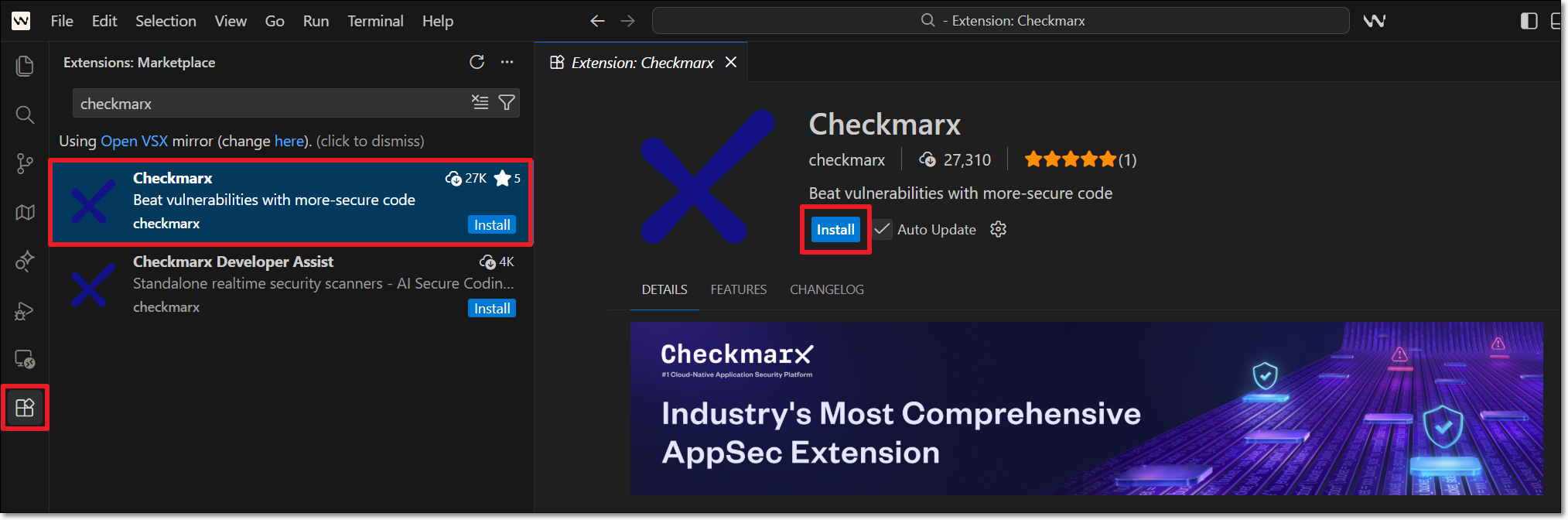
The Checkmarx extension is installed, and the Checkmarx icon appears on the left-side navigation panel.
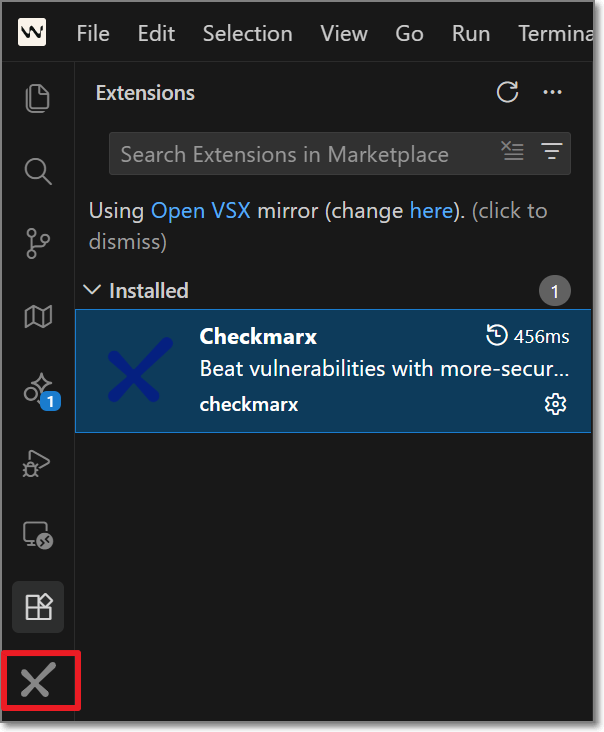
Click on the Checkmarx extension icon.
The Checkmarx One Authentication sidebar opens:
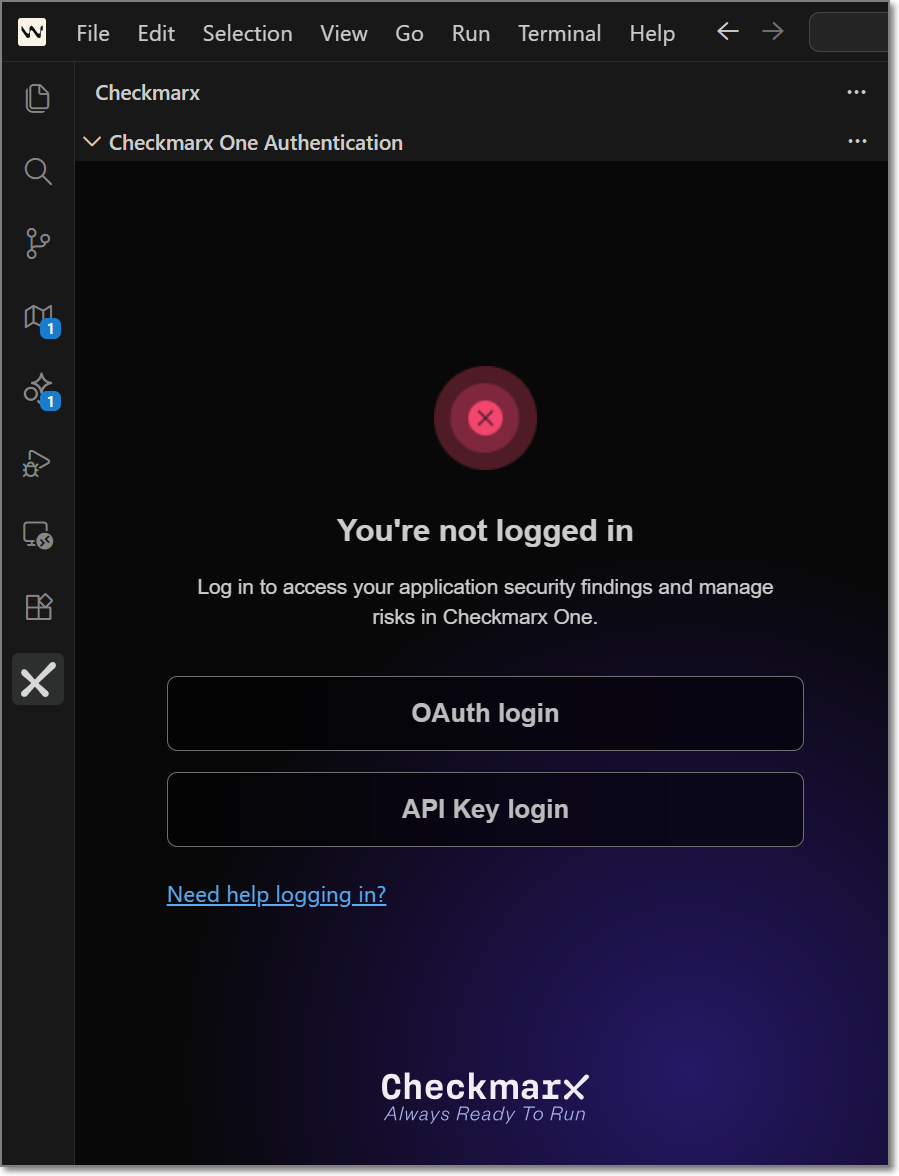
In the Checkmarx One Authentication sidebar, select the API Key login button.
The API Key Log in window opens.
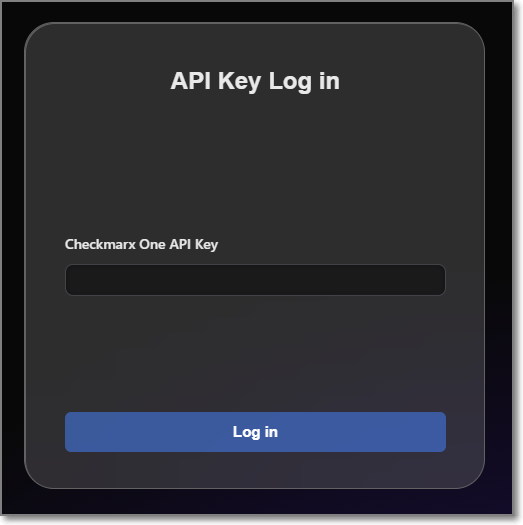
Enter your Checkmarx One API Key and click Log in.
The Checkmarx One Authentication sidebar will now show that you are logged in.
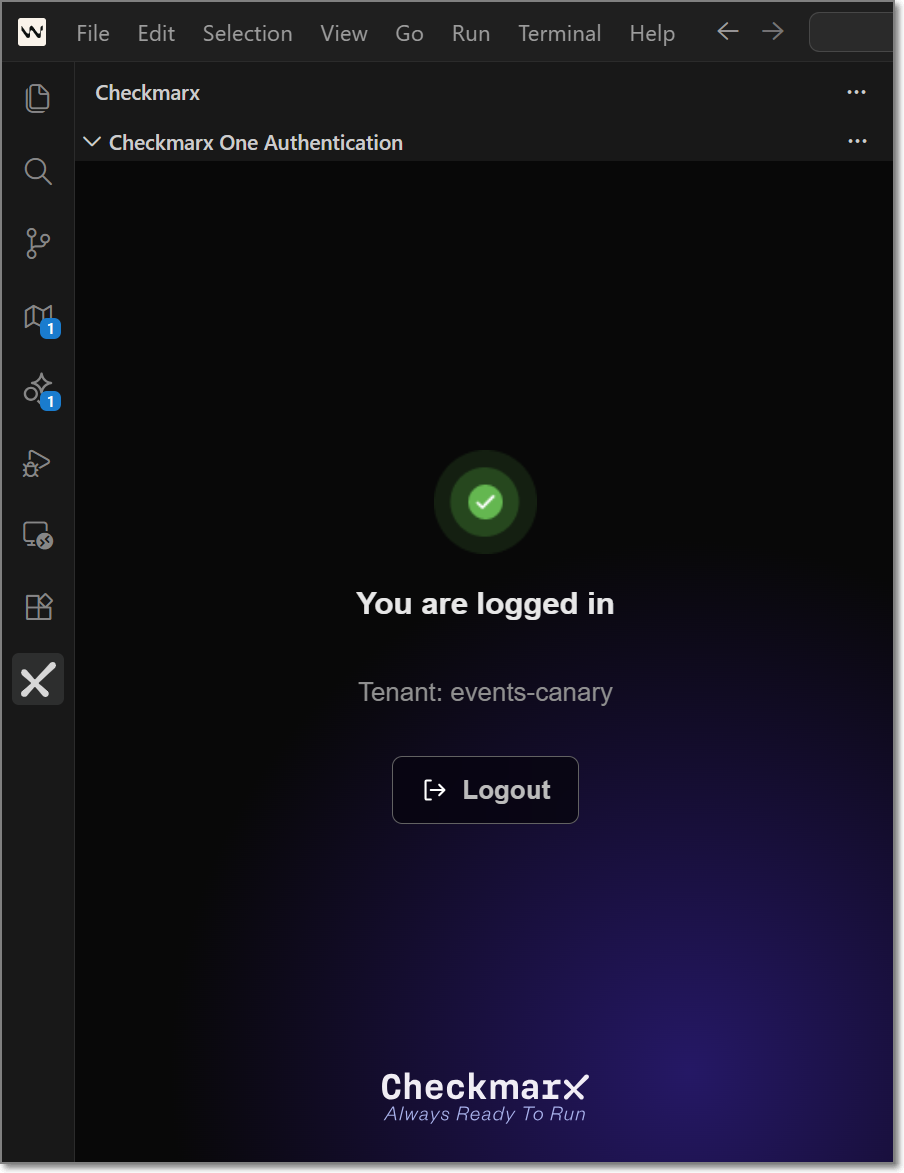
A Checkmarx Developer Assist welcome page is displayed immediately after a successful login. Scroll down and click on Mark Done.
To verify that your MCP server is running:
Go to Settings > Windsurf Settings.
Under Cascade, click Open MCP Marketplace, and make sure that the Checkmarx MCP is installed and enabled.
You can optionally adjust the Checkmarx Developer Assist Settings as follows:
Add Additional Params to set up custom configuraitions, such as proxy servers or to run in debug mode.
Enable/disable specific realtime scanners. By default, all scanners are enabled.
For IaC realtime scanner you can change the container platform used, Docker (default) or Podman.
MCP Authentication – Select the authentication method used by the Checkmarx MCP server. For SAST On-Prem accounts, only Token Based authentication is supported.
Notice
After changing the authentication method, click Install MCP to update the
mcp.jsonconfiguration.OAuth (default) when the MCP server starts, a browser-based login session is initiated to authenticate with your Checkmarx One account.
Warning
OAuth is not supported for SAST On-Prem Accounts
Token Based uses the API key associated with your current Checkmarx One login and avoids browser authentication when starting the MCP server.
Warning
When this method is used, the API key is stored in the
mcp.jsonfile.