Secret Detection Results Viewer
To view Secret Detection scan results:
Go to the Workspace
 > Projects page and hover over the Results button for the desired project.
Select the SCS scanner.
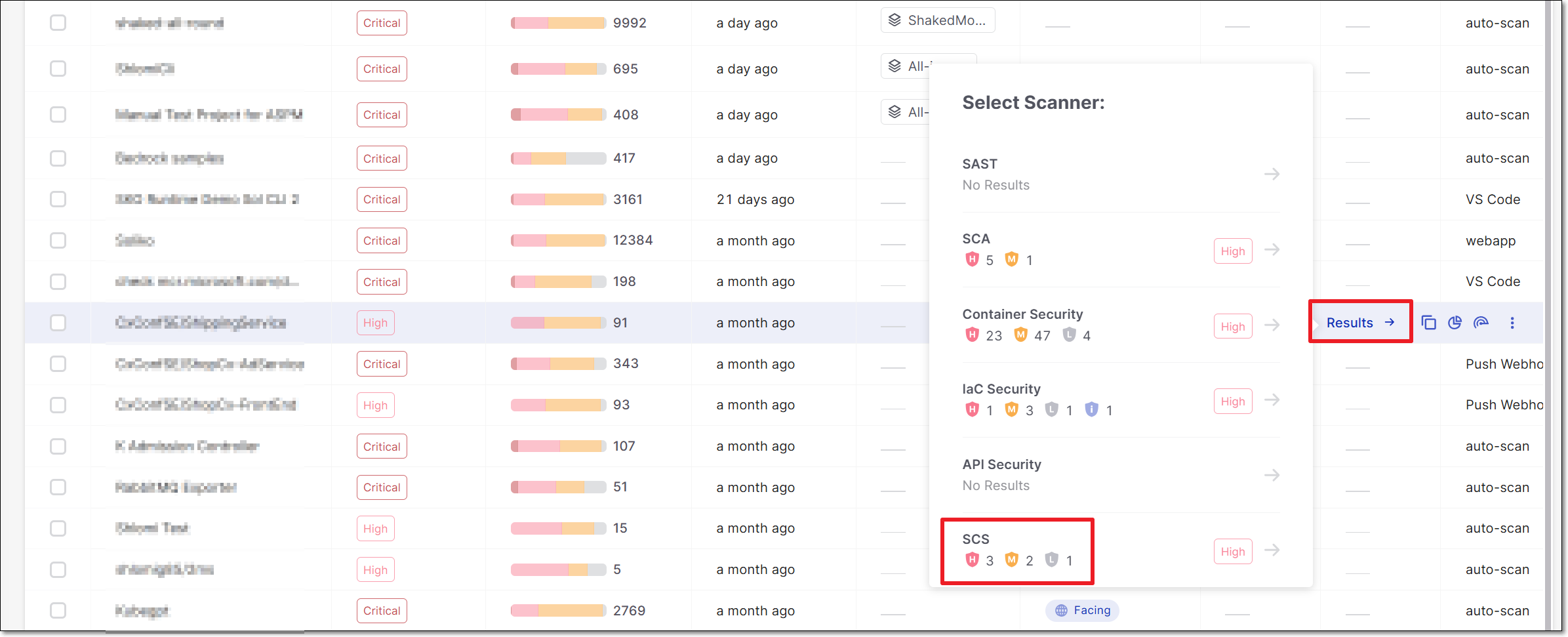
The SCS results viewer opens with Secret Detection selected for display.
Viewing Secret Detection Results
When the Secret Detection scanner is selected in the SCS results viewer, results are grouped by the type of secret detected. When you click on a type, a list of risks of that type is shown.
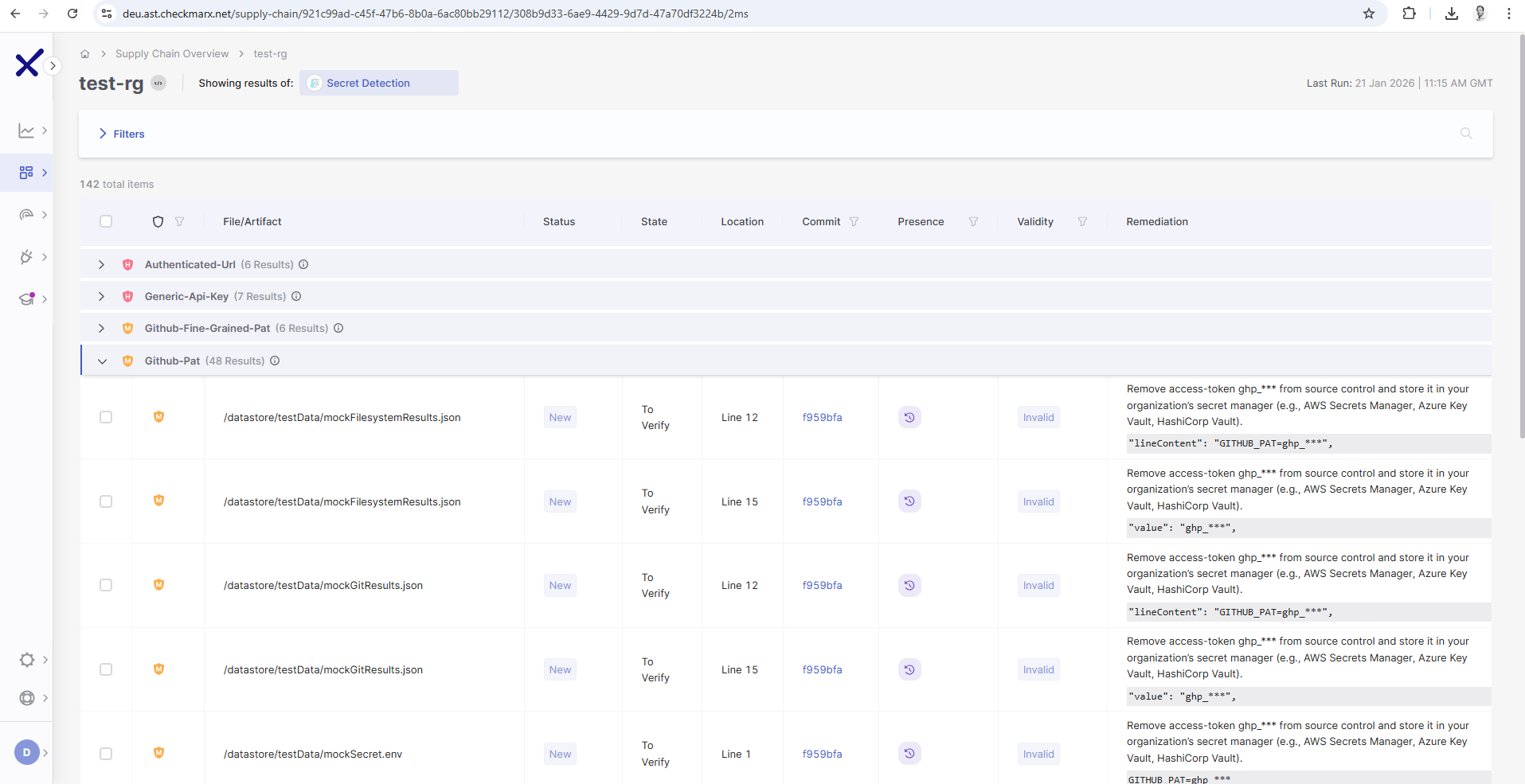
The following table describes the information shown for each risk.
Item | Description |
|---|---|
Severity | The severity of the risk. TipThe severity for detected secrets is generally set as High. However, when the validity test is run (i.e. for supported secret types), valid secrets are set as Critical and invalid secrets are set as Medium. |
File/Artifact | The path to the file or artifact in which the secret was detected. |
Status | Indicates the recurrence status of the detected secret.
|
State | Represents the current triage state of the finding. |
Location | The line in which the secret was detected. |
Commit | Shows the Git commit ID in which the secret was detected. Clicking the commit ID opens the relevant commit in the source repository. |
Presence | Indicates where the secret exists in the repository.
|
Validity | Indicates whether or not the secret is currently valid. |
Remediation | Shows a few characters of the detected secret, with the remaining characters masked for security purposes. The recommended remediation for detected secrets is to first remove the secret from your file and then to change the secret. |
Viewing Confluence Scan Results
When viewing Secret Detection results for a Confluence-based project, results are presented with different information columns than those displayed for other Secret Detection scans. Results are grouped by the type of secret detected. When you click on a type, a list of risks of that type is shown.
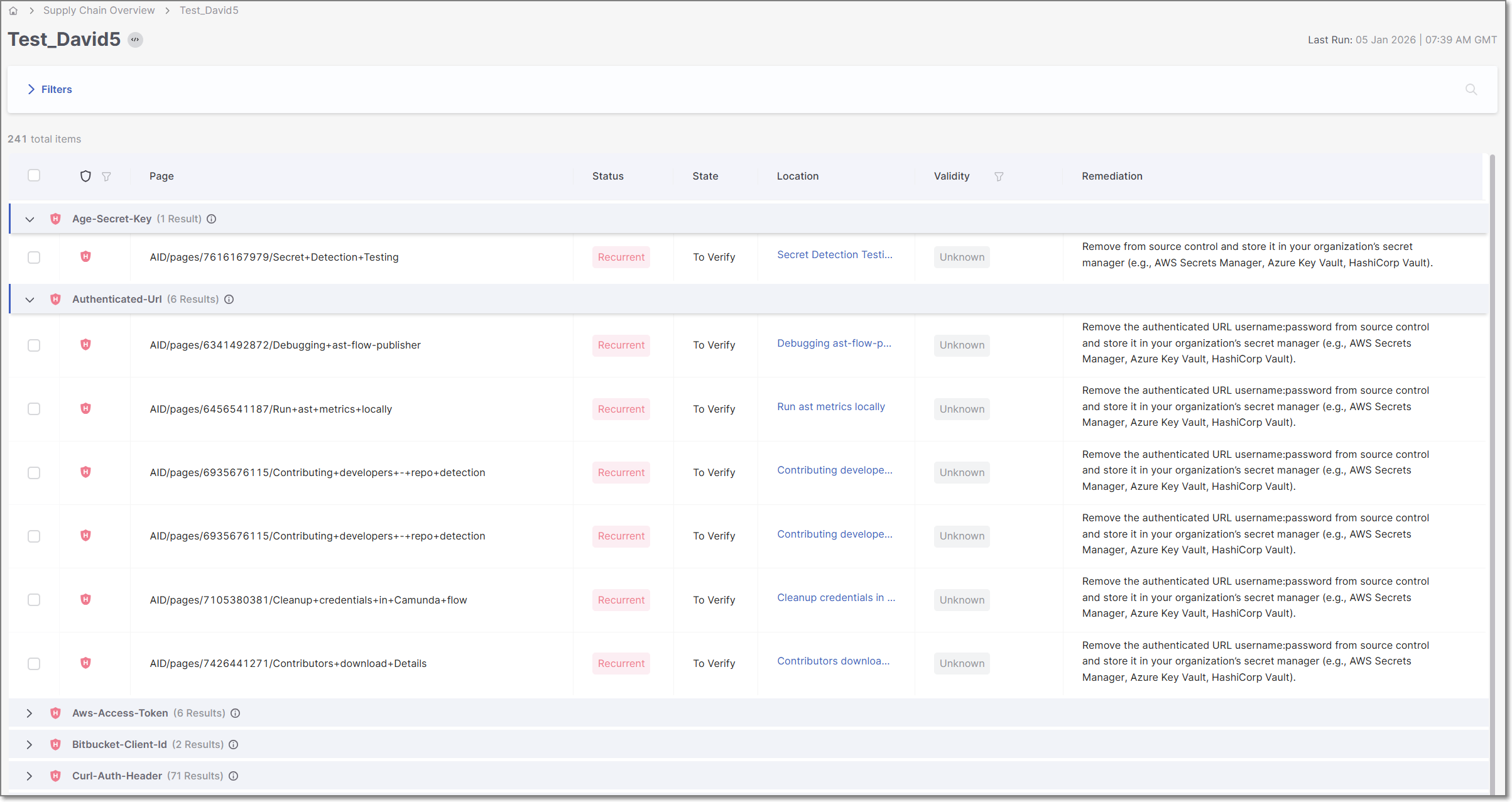
The following table describes the information shown for each risk.
Item | Description |
|---|---|
Severity | The severity of the risk. TipThe severity for detected secrets is generally set as High. However, when the validity test is run (i.e. for supported secret types), valid secrets are set as Critical and invalid secrets are set as Medium. |
Page | The confluence page in which the exposed secret was detected. |
Status | Indicates the recurrence status of the detected secret.
|
State | Represents the current triage state of the finding. |
Location | A link to the Confluence page that exposes this secret. |
Validity | Indicates whether or not the secret is currently valid. |
Remediation | Shows a few characters of the detected secret, with the remaining characters masked for security purposes. The recommended remediation for detected secrets is to first remove the secret from your file and then to change the secret. |