Triaging IaC Security Results
Important
The following permissions enable users to triage risks:
update-result-state-not-exploitable (can change to this state only)
update-result-state-propose-not-exploitable (can change to this state only)
update-result-states (can change all states except not-exploitable; can’t change the severity)
update-result-severity (can change only severities)
For additional details about triage permissions, see here.
Triaging Risk State and Severity
A risk state is assigned to each risk instance in your Project. Initially, the state of each new risk is set as To Verify, indicating that it is a new finding that hasn’t yet been assessed by your AppSec team. The severity is determined primarily based on the CVSS score of the vulnerability. Your AppSec team can adjust the risk state to one of the following options:
Notice
The states mentioned above are pre-configured for all Checkmarx One accounts. In addition, you can create custom states in your account. Once they are created, you can assign those custom states to results.
Custom states is currently supported for SAST, SCA, IaC Security and Container Security results. It is not yet available for all tenant accounts. For more info, see Custom States.
Not Exploitable - Select this state if your team has determined that this risk doesn’t pose a threat to your application (and isn’t expected to cause a risk at any time in the future).
Note
When a Risk is marked as Not Exploitable, in the All Risks page the CVE is marked with a strikethrough line, and the Risk Details page is grayed out. Also, Not Exploitable risks aren't counted in the risk summary counters.
Proposed Not Exploitable - Select this state if your team has suggested tentatively that this risk doesn’t pose a threat to your application.
Confirmed - Select this state if your team has confirmed that this risk does pose a threat and requires mitigation.
Urgent - Select this state if your team has determined that this risk poses an imminent threat and requires urgent mitigation.
Based on your AppSec team's determination, the score can be adjusted to a score between 0.0 and 10.0 with the following severity breakdown:
Critical - 9.0 to 10.0
High - 7.0 to 8.9
Medium - 4.0 to 6.9
Low - 0.1 to 3.9
Info - 0.0
You can adjust the predicate for a specific vulnerability while viewing that vulnerability on the Scan Results page.
Triaging a Single Vulnerability
To edit the result predicate:
Navigate to the vulnerability that you would like to edit.
To adjust the severity, click on the Severity field, and select from the dropdown list the severity that you would like to assign. Options are: Critical High, Medium, Low, Info.
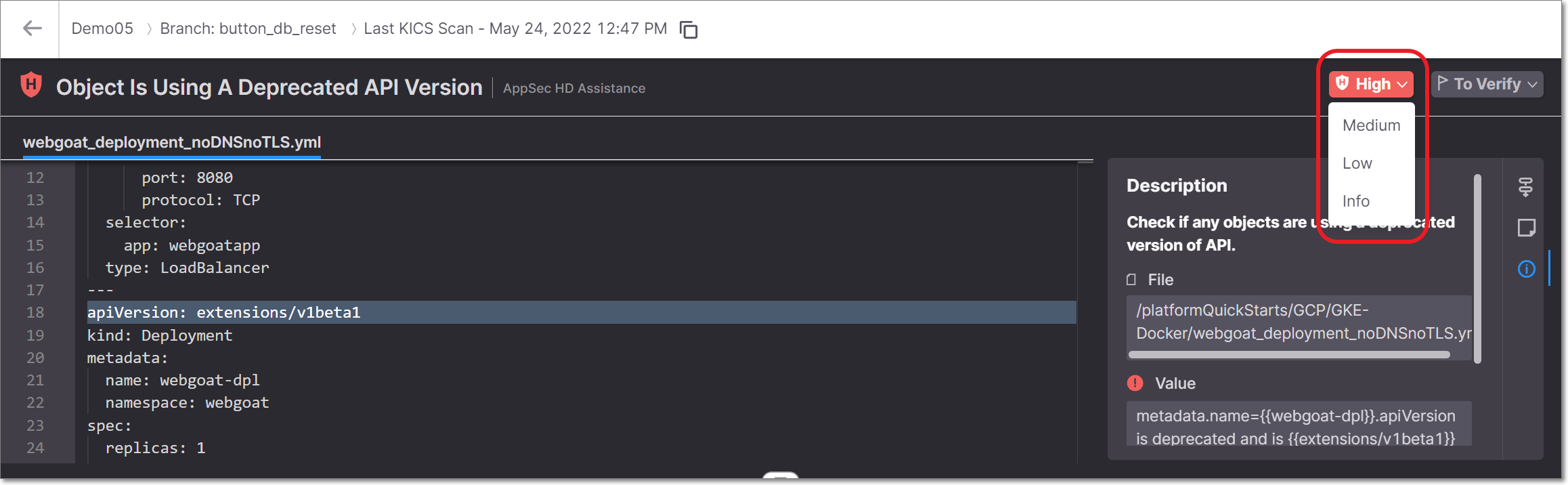
To adjust the state, click on the State field, and select from the dropdown list the state that you would like to assign. Options are: To Verify, Not Exploitable, Proposed Not Exploitable, Confirmed or Urgent.
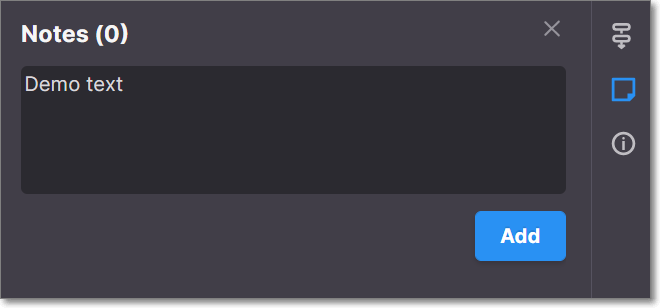
To add a note, click on the Note icon in the toolbar. In the Notes pane that opens, click + Add and then enter the desired text and click the Add button at the bottom.
Triaging Multiple Vulnerabilities (Bulk Action)
To edit the result predicate for multiple vulnerabilities:
In the Vulnerabilities table, select the checkbox next to each vulnerability for which you would like to make the changes.
Note
Alternatively, you can select all instances in a group of vulnerabilities by selecting the checkbox at the top of that section.
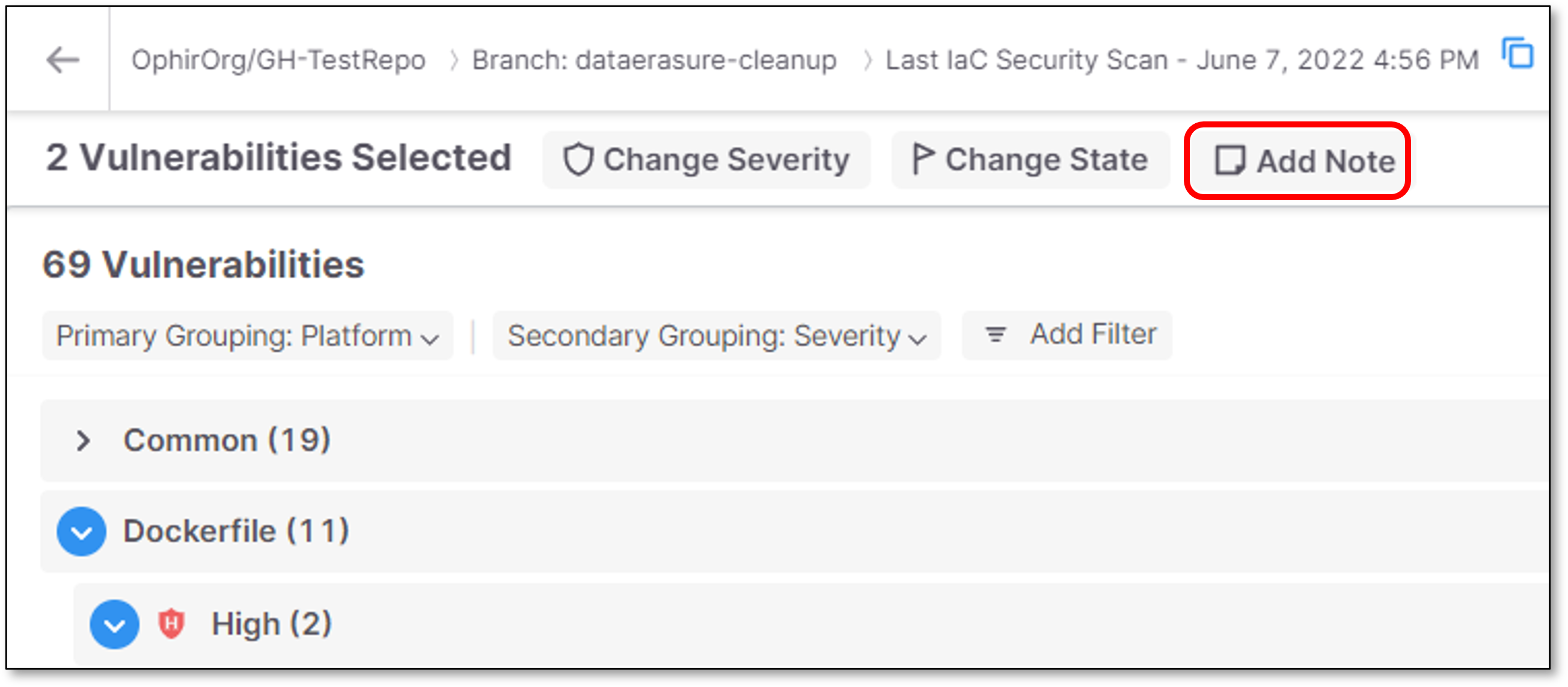
A menu bar is shown at the top of the table.
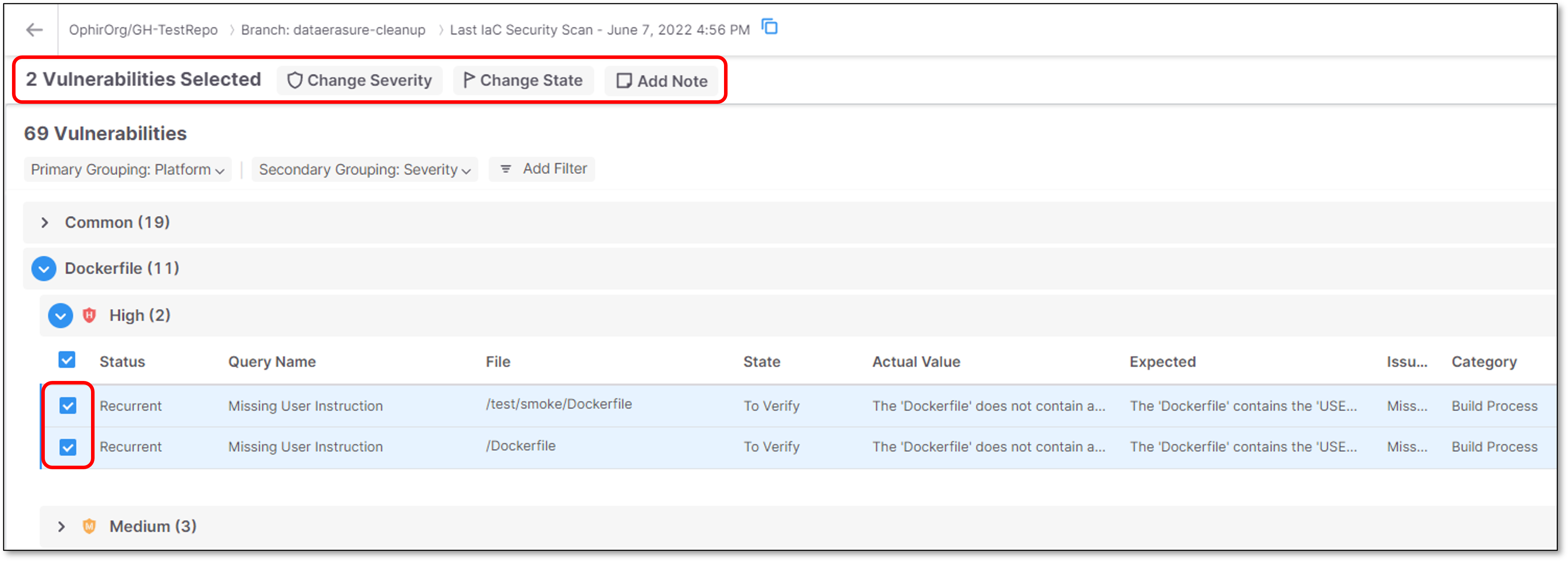
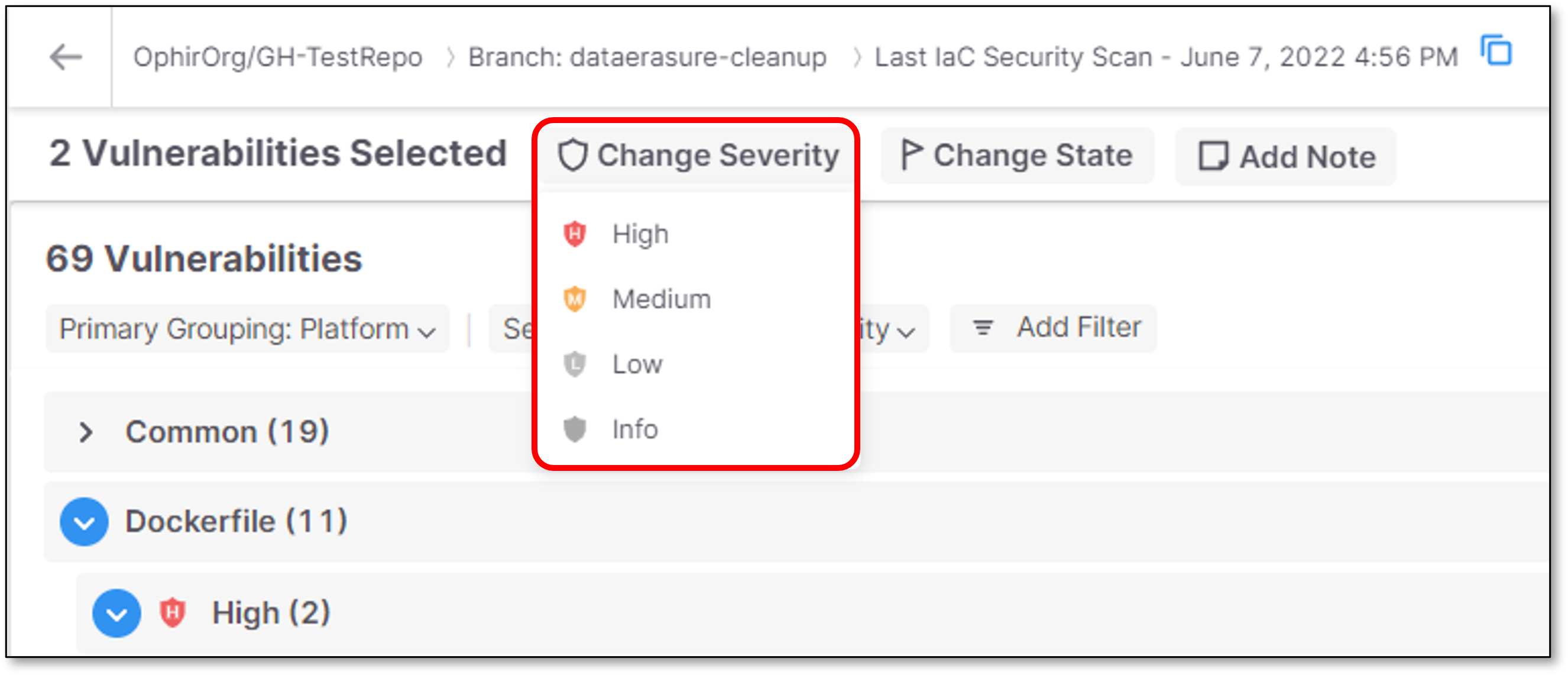
To adjust the severity, click on the Change Severity button, and select from the dropdown list the severity that you would like to assign.
Options are: Critical High, Medium, Low, Info.
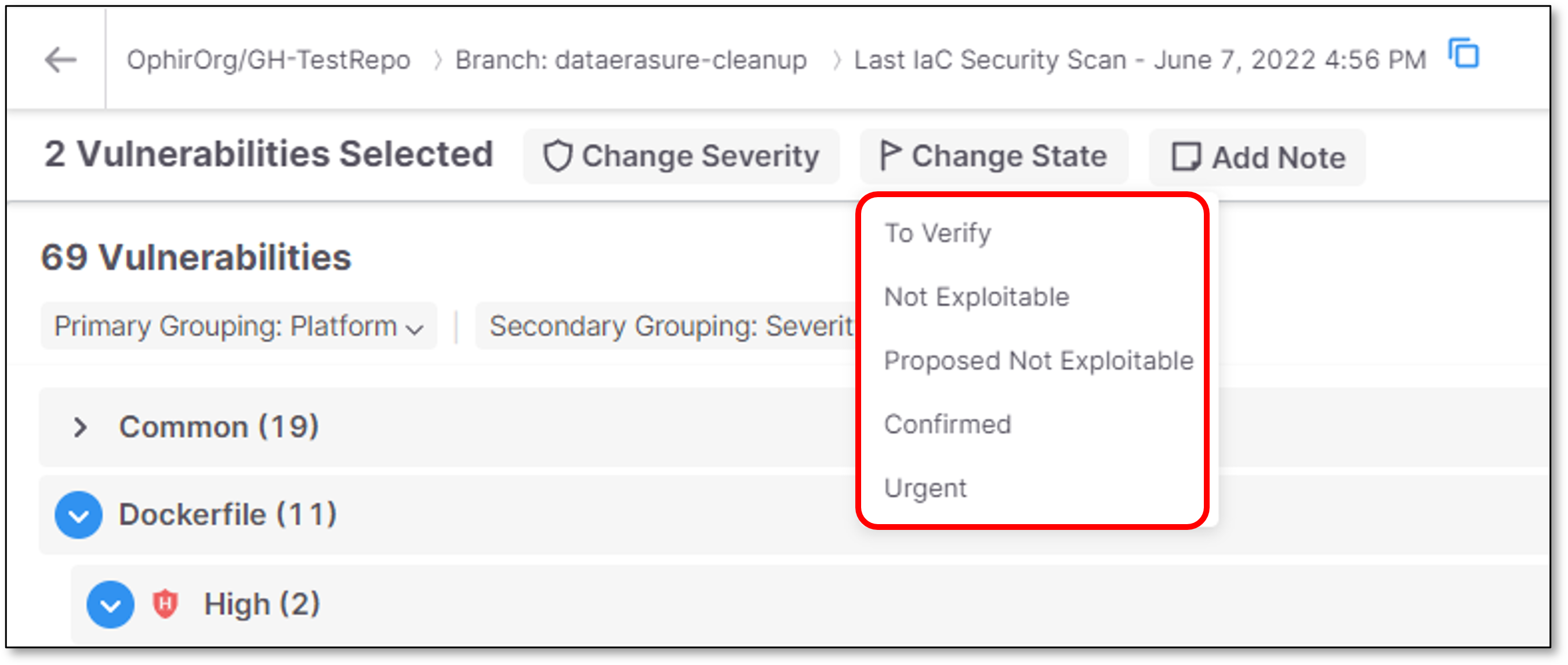
To adjust the state, click on the Change State button, and select from the dropdown list the state that you would like to assign.
Options are: To Verify, Not Exploitable, Proposed Not Exploitable, Confirmed or Urgent.
To add a note, click on the Add Note button. In the Notes pane that opens, enter the desired text and click Save.