Applications Page
The Workspace  > Applications page enables you to manage and monitor your Checkmarx One Applications.
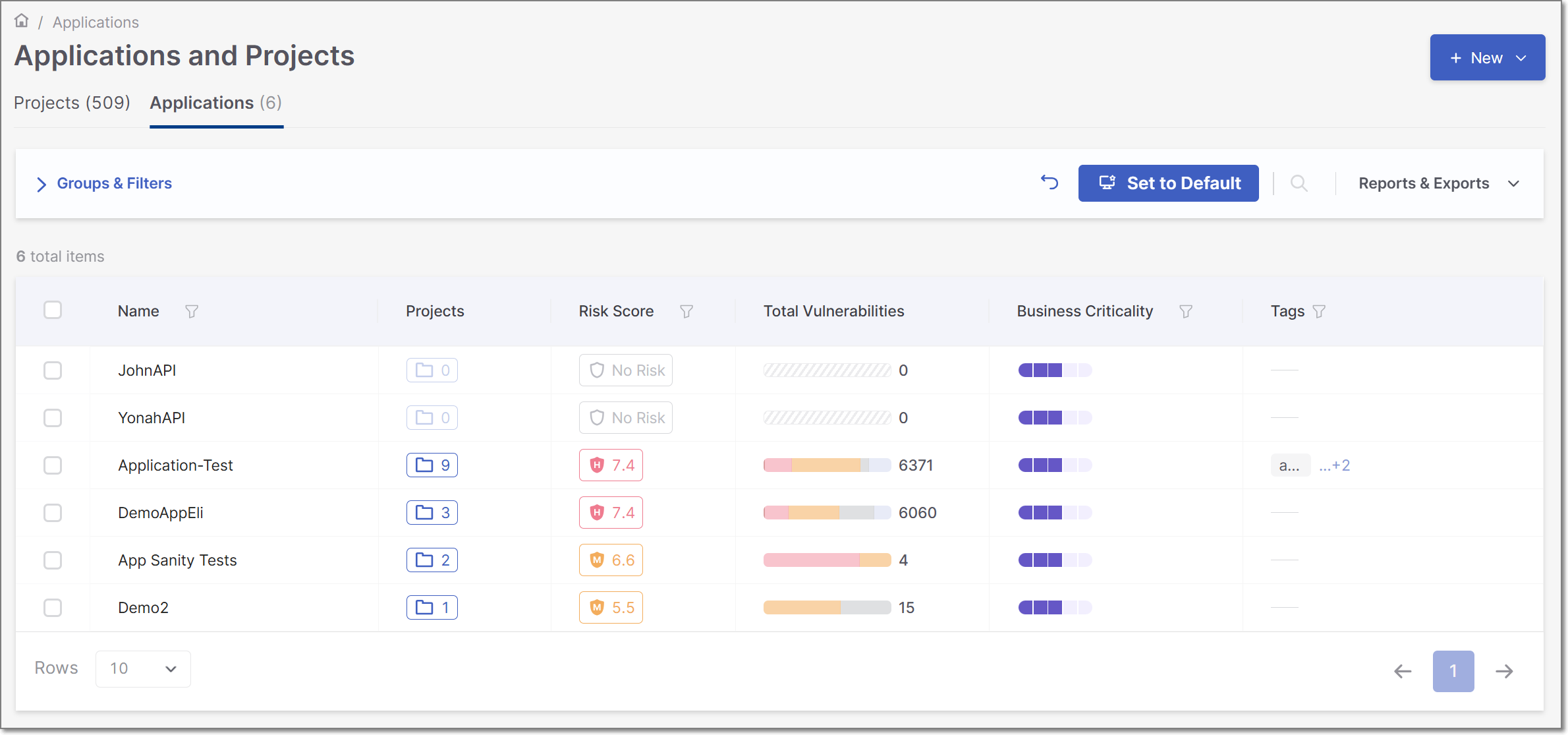
The Applications page contains the following elements:
The New
 action button, for creating new applications. For more information, refer to Creating Applications.
The Applications Pane.
Application Actions
Application Header Bar - includes tools for filtering the Applications Pane view, and exporting Application reports.
 |
The following sections describe each component of the Applications page in more detail.
The Applications Pane
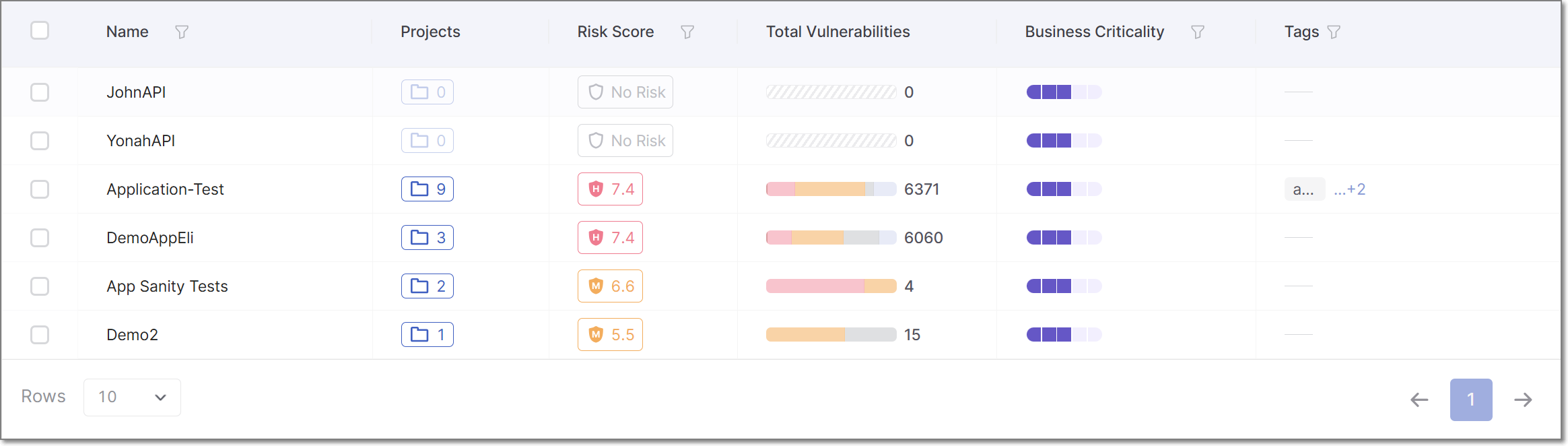
The Applications Pane shows a list of the Applications in your account. Each row in the table represents a single application, including a summary of the total number of projects associated with it, as well as the application’s overall risk score and total vulnerability counts. For more details on the application columns, see here. The table is customizable and searchable and can be exported as a .csv file for easy sharing or manipulation in an Excel worksheet.
Customizing the Applications Pane
Hone in on your Applications by customizing the Applications Pane view. By default, the table displays 10 applications per page, as specified in the Rows dropdown. You can adjust this setting to display 10, 20, or 50 applications per page. Use Groups, Filters, and Sorting to further refine and organize the table view according to your preferences.
Groups: The table view can be grouped by the applications' Risk Levels or Business Criticality. To enable grouping, follow these steps:
Click
 then
then
Select the Risk Level group, the Business Criticality group, or both..
Click Select.
Filters: Filtering can be applied to single or multiple columns in the table. To enable filtering for a single column, click the Filter
 icon next to the desired column header. Set the filter conditions and click Apply. The table will then be filtered accordingly, and the applied filters will be added to the filters box above the table.
To remove filters:
If only one filter is applied: Click the Filter
icon again, clear the filter conditions, and click Apply.If multiple filters are applied: A Clear All option will appear next to the filters displayed in the filters box above the table. Click Clear All to remove all active filters at once,
Sorting: For supported columns, clicking the column header cycles through the available sort states: ascending, descending, and no sort. Columns that do not support sorting will not respond to header clicks.
Set Default Table Display
When you customize the display of a table by changing the grouping, applying a filter, sorting the results etc., the  button appears at the top of the page. Click on this button to save this view as your default. Each time that you log in to your account your Default view will be displayed.
If you then make changes while showing your customized Default view, a Revert button appears next to the Set to Default button  . This will return you to the previously set Default view.
Alternatively, you can click on again to set the current view as your Default. This will override and permanently delete the previous Default view.
Notice
Pagination and branch selection are not included in the Default view, as these tend to relate to a specific session.
Application Actions
All actions available for a single Application appear upon hovering over the Application row in the table. There are two types of actions available:
Quick Actions - Actions automatically displayed upon hovering.
Actions Menu - Actions that are found in the Actions Menu by clicking on the
 icon at the end of the row.
Quick Actions
The total number of detected vulnerabilities in the application's projects is displayed in the Total Vulnerabilities column. Hovering over the vulnerability severity distribution bar displays a split of the vulnerabilities per severity.
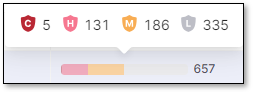
The total number of projects in the application is diaplayed in the Projects column. Clicking on the projects
 icon displays the Application Projects side panel. The side panel shows a list of all projects in the application. You can hover over any project and click View Project to open that project's Project Overview page.
 - Hover over the desired Application and click Overview to open the Applications Overview page. The Applications Overview page presents aggregated information and analytics for an Application.
 - Hover over the desired Application and click on the All Projects link to open the Application Projects page.
Actions Menu
Application Settings - Opens application settings.
Delete Application - Deletes the application. For more information on deleting applications, see Deleting Applications.
Applications Header Bar
The Applications Header bar shows information about grouping and filters applied to the items displayed on the page. It also includes four action buttons: Set to Default, Revert to default, Reports & Exports and + Add Group.

The following table describes the items in the Header Bar
Item | Description |
|---|---|
Groups & Filters | A list of the grouping and filters applied to the items displayed. Click on the arrow next to the words Groups & Filters to display the selected groups and filters. |
+ Add Group | Groups the Application Pane display by category. See Groups in the Customizing the Applications Pane section above. |
Set to Default | Saves your current view configuration — including any selected groups and filters — as the new default. From now on, whenever you open this page, these saved groups and filters will automatically be applied. |
Revert to default | Restores the default view to its original configuration, removing any custom default settings you’ve previously saved. |
Search | Clicking on the Search icon expands a search bar, allowing you to quickly locate an Application by name or keyword. |
Reports & Exports | Clicking on the Reports & Exports menu item displays a drop-down list with the following options:
|
