JFrog Artifactory Integration for SCA Scanner
Checkmarx One provides an integration with JFrog Artifactory, enabling you to run SCA scans on packages in your private JFrog Artifactory. We provide a convenient wizard on the Checkmarx One Integrations page that enables you to submit your JFrog credentials and create the integration. Then, you need to add the relevant info to the configuration files in each of the relevant projects.
Prerequisites
A Personal API key or Identity Token for the repository where the packages are located, with read access to the relevant repos.
Notice
In JFrog go to Admin > Identity & Access > Users then select your user and go to the Authentication tab and generate the API key/Identity Token.
If your Artifactory instance cannot be reached over the public internet by the Checkmarx SCA service (for example, it is on-premises), you must configure a CxLink to enable access.
Limitations
Supported only for projects that use Nuget, Maven or Npm package managers.
Step 1 - Setting up an Integration
To set up a JFrog Artifactory Private Artifactory Integration:
In the main navigation, select Integrations
 > Cloud Connections.
In the Setup tab, under Private Registries for Containers, hover over the JFrog Artifactory tile and click on Configuration. then click Start.
In the side panel that opens, click Start.
The JFrog Artifactory Integration wizard opens.
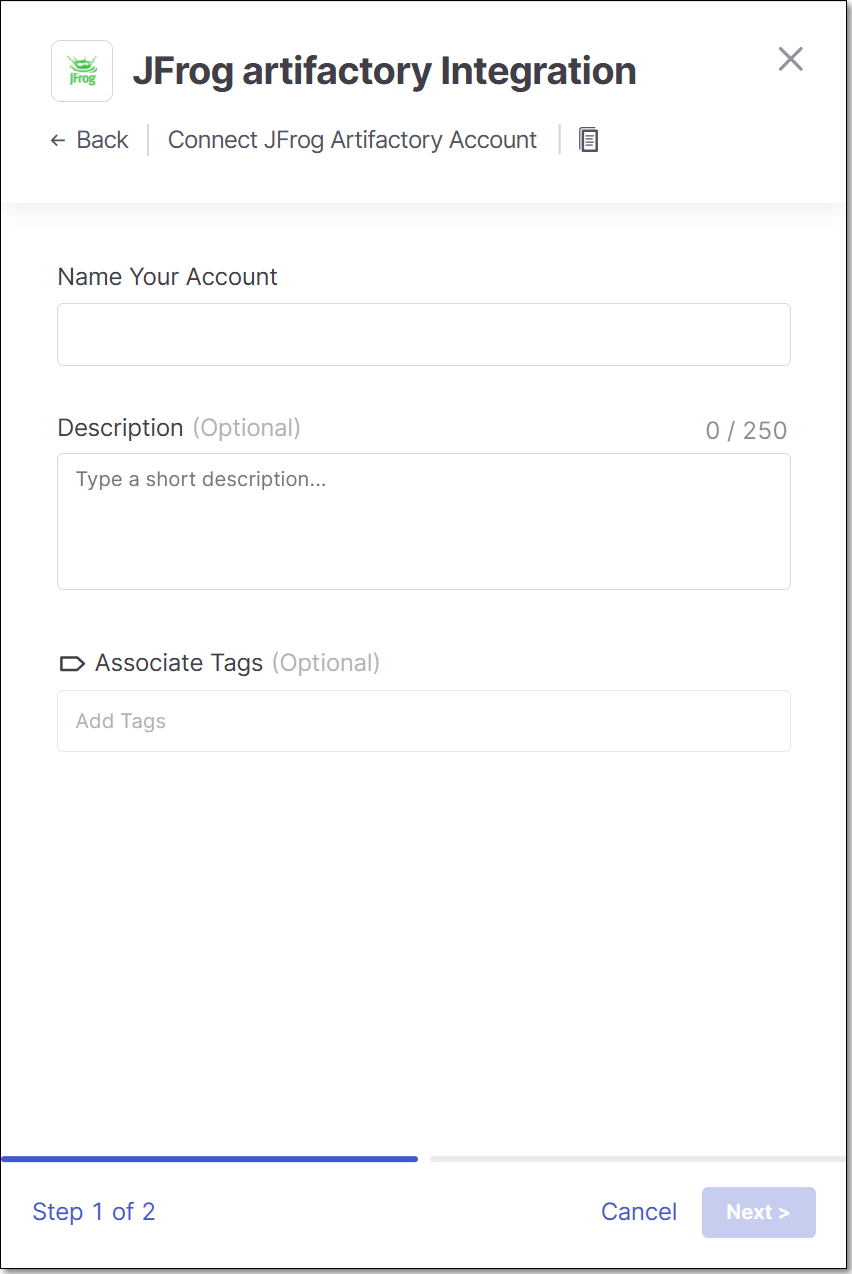
Name Your Account and optionally fill in the Description and Associate Tags fields, then click Next.
Make a note of the name that you designated, as you will need to use this name in the following step.
Under Username enter the Username for your JFrog account.
In the API Key field, enter the API key for your JFrog Artifactory (as described above in Prerequisites).
In the URL field, enter the URL for your JFrog account using the format
https://<subdomain>.jfrog.io.Alternatively, if you have configured a CxLink to access this repo, enter the CxLink (using the following format: https://<subdomain>.<domain>/link/<UUID>). Learn more about CxLink here.
Click Add Account.
Monitoring Integration Status
You can monitor the status of your JFrog integrations to see whether or not the integration is connected. Possible statuses are:
Pending - The integration was just set up and hasn't connected yet.
Connected - The integration is running and you are able to scan images in your JFrog Artifactory.
Disconnected - Checkmarx One is not currently able to access your private JFrog Artifactory.
To monitor the integration status:
In the main navigation, select Integrations
> Cloud Connections.In the Cloud Connections tab, check the Status column for each of your integrations.
Step 2 - Project Configuration
For each project you want to scan, you must configure access to your private package repositories. This is done by using the templates provided below and applying them to your project configuration.
Prepare the configuration template
Copy the relevant template and replace the placeholder <MASK_NAME> with the name of the integration you defined in the JFrog integration wizard in the previous step.
Templates
Nuget
Maven
Npm
Apply the configuration to your project
You can apply the configuration using one of the following methods.
Option A – Add configuration files to your repository
Add the relevant template to your project’s source code using the folder structure shown below, based on your package manager.
Notice
If the config files already exist in your project, then you can add the template content to your existing file.
NuGet -
./.checkmarx/sca/nuget/NuGet.ConfigMaven: -
./.checkmarx/sca/maven/settings.xmlnpm -
./.checkmarx/sca/npm/.npmrc
Option B – Apply configuration via API (no files added)
Apply the configuration without adding any files to your project’s source code by sending one of the above templates in the request body of an API call.
This approach is useful if you prefer not to commit registry configuration or credentials to your repository.
For full details, see the
SCA Private Registry Configuration APIdocumentation.