Navigating AI Supply Chain Security
Prerequisites
Important
Before scanning your project with AI Supply Chain Security, you must scan it with any scanner (SAST, SCA, DAST, etc.) first.
AI Supply Chain Security only scans a repo's main branch.
You must enable project filters for AI Supply Chain Security in the global settings before proceeding. Perform the following:
Navigate to
 on the side panel.
Click Global Settings
Select AI Supply Chain Security from the list of tabs.
Write the project filter in the field. See below for more details and examples.
Click Save when done.
Scan your project with any scanner.
Project Filters
Project filters let you include or exclude projects from AI Supply Chain Security scans. They match against the project’s full name and support global‑style wildcard patterns. Filters apply globally and are evaluated after a project has been scanned by at least one enabled scanner.
If you leave the project filter field empty, no projects are configured, and AI Supply Chain Security will not run on any project. Filter changes take effect only after you click Save. Leaving the page without saving your changes discards them.
Filter syntax and behavior
Filters are defined as a comma-separated list.
Supported wildcards:
*matches any sequence of characters, including/?matches a single character
A filter prefixed with
!excludes matching projects.Filters are evaluated from left to right.
If multiple filters match a project, the last matching rule wins.
Invalid filter patterns are ignored.
Examples
Match all projects
*
Single project
my-org/my-repo
Multiple specific projects
my-org/backend-service,my-org/frontend-app,my-org/infra-repo
Using wildcards
my-org/*,*/shared-*
Exclude projects
Exclude all projects ending with -service:
!*-service
Include all, then exclude specific projects
*,!*-service
Exclude first, then re-include specific projects
!*-service,api-*
This configuration includes api-service but excludes other *-service projects.
Nested project names
CheckmarxDev/*
Matches projects such as:
CheckmarxDev/team/cnas-manager
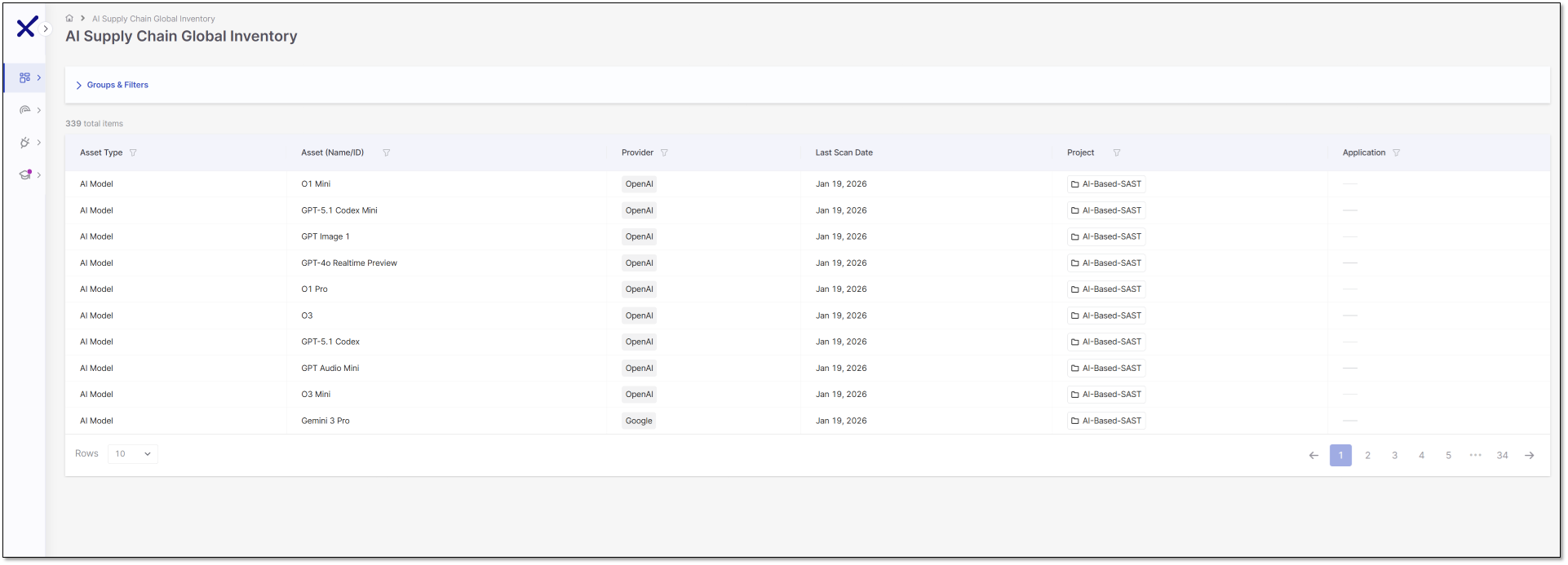
AI Supply Chain Security Table View
Access the AI Supply Chain Global Inventory page from the side panel:  Resources > AI Supply Chain Global Inventory.
The AI Supply Global Inventory table displays a unified view of all detected AI assets across your environment. Each column supports filtering and sorting to help you refine the table. The table is paginated, showing 10 rows per page by default. The columns are:
Asset Type – The category of the AI component, such as an AI model, LLM SDK, or AI library.
Asset Name/ID – Displays the specific asset name or identifier, for example, GPT‑4.1 or Gemini 3 Pro.
Provider – Shows the source of the asset, such as Meta, Hugging Face, Google, or OpenAI.
Last Scanned Date – Records the most recent timestamp when the asset was scanned.
Project – The project associated with the asset.
Application - The application associated with the asset.