Checkmarx MCP Server
Interacting with Checkmarx One via AI Assistants and Integrations
Overview
Modern development and security workflows are increasingly centered around AI-assisted environments. However, traditional security tooling often requires users to leave these environments to take action, disrupting productivity and reducing engagement. The Checkmarx MCP Server addresses this gap by bringing security operations directly into the tools where users already work — making it easier to adopt, integrate, and act on security insights in real time
The Checkmarx MCP Server acts as a translation layer between MCP-compatible clients and the Checkmarx One REST APIs, enabling developers and security teams to interact with Checkmarx One from AI assistants and supported third-party integrations. Through these clients, users can interact with Checkmarx One using natural language within an IDE, terminal, chat, or other supported interface. Users can trigger scans, retrieve findings, and query security posture within AI workflows without needing to switch to the platform UI. That means that a developer can now request a scan and immediately receive prioritized results and a security lead can query organization-wide coverage and risk trends, without disrupting their workflows.
Built on the Model Context Protocol (MCP), an open standard for connecting AI applications and platforms to external tools and data sources, the Checkmarx MCP Server exposes a curated set of capabilities that map to Checkmarx One functionality. It acts as a controlled interface between AI agents and the Checkmarx APIs, enabling secure, structured access to data and actions through natural language. This release introduces the initial phase of the MCP Server - providing a minimal set of capabilities required to support meaningful, end-to-end workflows for both developers and AppSec teams. We will soon be adding more advanced capabilities such as automated triage, external integrations, and agent-driven workflows.
Who is it for?
Developers - Trigger scans and receive prioritized findings directly within the IDE or terminal, without switching between tools.
AppSec Engineers - Query findings by severity, type, or scanner; manage project and application inventory; and monitor scan status.
Security Leads - Gain organization-wide visibility into scan coverage, risk posture, and trends across teams through simple, natural language queries.
Supported Scanners and Tools
Scanners - Supported for SAST, SCA, IaC Security, Secrets and API Security.
Tools - Currently provides tools in the areas of remediation, scan workflow, project, and application management, scan history and triage. Other advanced Checkmarx One workflows are not yet supported.
Note
Triage tools are not yet supported for the API Security scanner.
Prerequisites
Certain MCP features require the Checkmarx CLI to be installed and configured. To enable these features, ensure that the Checkmarx CLI is installed and that the MCP can access its executable path.
For best results, use credentials with matching permissions in both the Checkmarx CLI and the MCP server configuration. Permission mismatches may prevent some operations from completing successfully.
Local directory scanning specifically requires access to the Checkmarx CLI and is not available through the MCP alone.
Data Security
Data in encryption in transit - TLS 1.2+ on all connections
No credential storage or logging
Complete tenant segregation
RBAC passthrough enforced - no privilege escalation via MCP
Repo URL credentials always sanitized - never shown to user
No destructive activities (e.g., project deletion) allowed via MCP
Authentication and Permissions
Authentication is done using an OAuth login workflow or by submitting an API Key. Once authenticated, the MCP is able to interact with the relevant tenant account based on the specific set of permissions assigned to the user or API Key.
The MCP is available to all Checkmarx One customers. However, functionality is limited based on:
License Packages - Only tools licensed for your account are available. For example, remediation tools are only available for accounts with Checkmarx One Assist, AI Protection or Checkmarx Developer Assist license. In addition, only licensed scanners can be run.
User Permissions - Tools are only available to users with the relevant permission for each action (based on Checkmarx One IAM). For example, only users with permission to run scans can initiate a scan via the MCP. And, only users with access to a particular project can ask the MCP to view results for that project.
Supported Authentication Methods
Checkmarx MCP supports the following authentication methods:
API Key -Submit a JWT (JSON Web Token) access token. Access tokens are obtained via the Checkmarx web application (UI), see Generating an API Key.
Predefined OAuth Client — Uses a fixed OAuth client that is registered in advance. This is the simpler option, relying on a known, shared client identity. Use this predefined clientId:
cx-mcp-clientDynamic OAuth Client Registration (DCR) — The MCP client registers itself dynamically at runtime by calling the authorization server's registration endpoint, obtaining its own client credentials on the fly.
Caution
There is an upper limit of 500 clients per tenant using DCR authentication. When the limit is reached, the following message is displayed:
Policy 'Max Clients Limit' rejected request to client-registration service
In this case, you must use one of the other authentication methods for some of your users.
Supported Methods by Platform
The following table shows which authentication methods are supported for each platform.
Platform | API Key | Predefined OAuth Client | DCR |
|---|---|---|---|
Claude Code | ✔ | ✔ | ✔ |
Gemini CLI | ✔ | ✔ | ✔ |
Codex CLI | ✔ | x | ✔ |
Copilot CLI | ✔ | x | ✔ |
Cursor IDE | ✔ | ✔ | See note |
VS Code | ✔ | ✔ | ✔ |
JetBrains IDEs | ✔ | x | x |
Windsurf | ✔ | x | ✔ |
Kiro IDE | ✔ | x | ✔ |
Antigravity IDE | ✔ | x | ✔ |
Claude Web and Claude Desktop | x | ✔ | ✔ |
Amazon Quick | x | ✔ | ✔ |
Installation and Configuration
The Checkmarx MCP Server can be integrated with AI assistants and development tools that connect directly to the MCP server, as well as with supported third-party platforms.
AI Assistants and Development Tools — Connect an MCP-compatible AI assistant or development tool directly to the Checkmarx MCP Server. Installation and authentication methods vary by platform.
Third-Party Integrations — Connect a third-party platform, such as Amazon Quick, to the Checkmarx MCP Server. These integrations may require additional configuration within the third-party platform.
Notice
For all installation flows, you will need to provide your Checkmarx One Server Base URL.
Important
For some third-party integration configurations, you will need to provide your IAM Base URL.
AI Assistants and Developer Tools
Use the following instructions to connect your AI assistant or development tool directly to the Checkmarx MCP Server.
Select your platform below. The supported authentication methods for each platform are listed in the recommended order.
Troubleshooting
Message or symptom | Cause | Resolution |
|---|---|---|
| API Key invalid, expired, or issued in a different environment | Regenerate the key and confirm the Base URL matches the issuing tenant |
| Token issued for a different tenant | Verify |
| Tenant reached the 500 DCR client limit | Use the Predefined OAuth Client or an API Key for some users |
| Permission gating | The user lacks the Checkmarx One permission for that action |
Server does not connect | Endpoint URL shape | API Key endpoints have no tenant path segment; OAuth endpoints require one |
| Trailing slash on the Base URL, or a mistyped | Correct the URL |
Configuration saved but no server appears | Wrong root key | VS Code and Visual Studio use |
Root key correct but no server appears | Wrong URL field | Windsurf and Antigravity use |
Copilot CLI connects but exposes no tools |
| Add |
Server available in one project only | Configuration written at project scope | Reapply at user scope |
Remediation tools not listed | License gating | Requires Checkmarx One Assist, AI Protection or Checkmarx Developer Assist |
Local directory scan does not run | Checkmarx One CLI not installed or not on | Verify with |
Scan starts but the CLI step fails | CLI and MCP configured with different credentials | Use matching credentials |
Third-Party Integrations
Third-party platforms can integrate with the Checkmarx MCP Server to make Checkmarx tools available through their own AI agents and interfaces.
Amazon Quick can be integrated directly with the Checkmarx MCP Server, enabling users to access Checkmarx capabilities through the Quick AI agent. Checkmarx MCP tools can also be used in Amazon Quick Flows, enabling you to turn interactions with Checkmarx into reusable workflows that can be run on demand or automatically on a schedule.
To view AWS documentation on this feature, see Model Context Protocol (MCP) integration.
Prerequisites
Before configuring the integration, make sure that you have access to:
An Amazon Quick Enterprise subscription. MCP integration is not available on lower subscription tiers.
Amazon Quick Admin permissions, required to create a connector under Create for your team.
The Checkmarx One tenant and environment that you want to connect to.
For Service Authentication method: An OAuth Client ID and Client Secret for that account. To create an OAuth client, see Creating an OAuth Client. Ensure that the OAuth client you create is configured with the appropriate roles required to run the Checkmarx One functionality represented by the Checkmarx MCP tools.
Configure the Amazon Quick Integration
Log in to Amazon Quick.
In the left-hand navigation bar, hover over More and select Connectors.
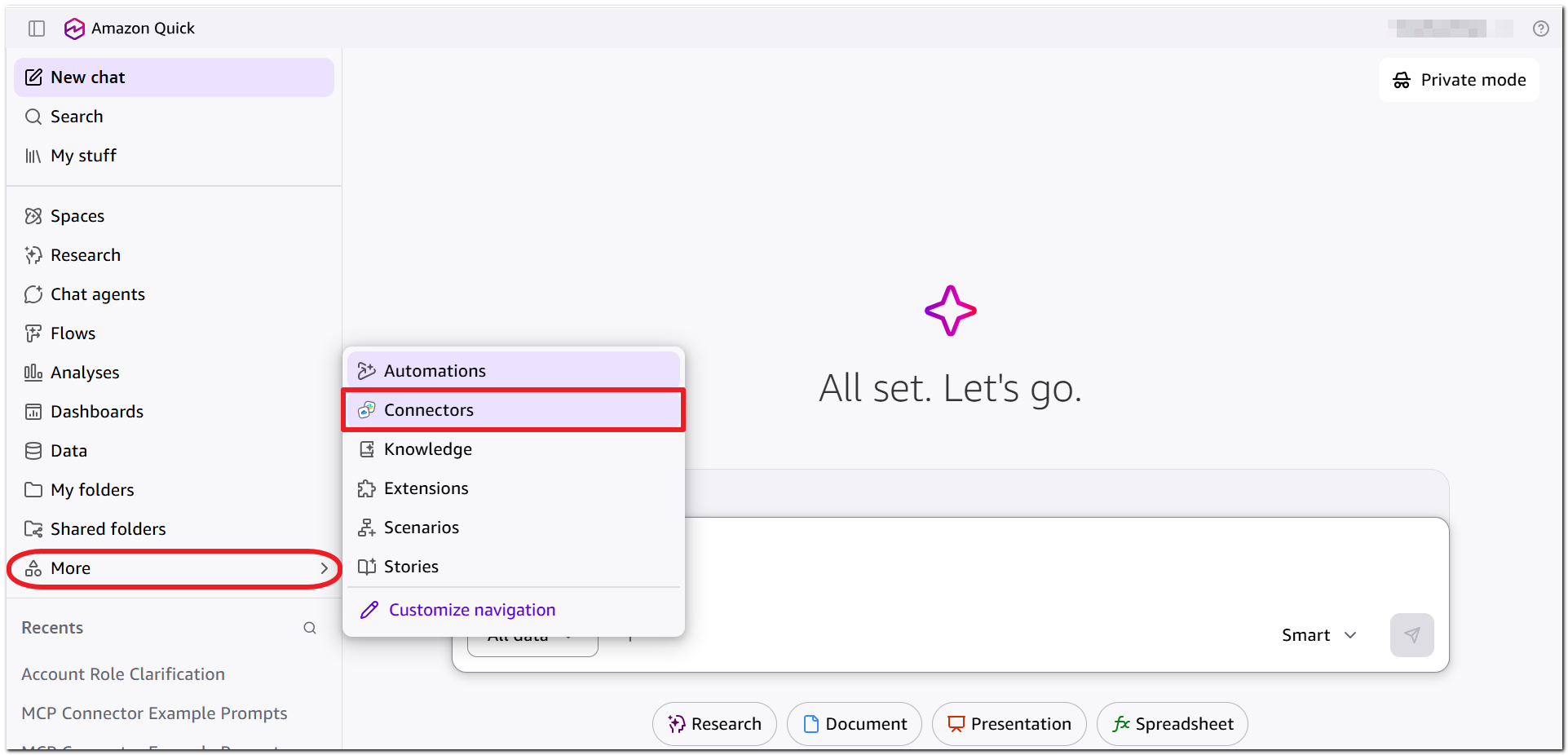
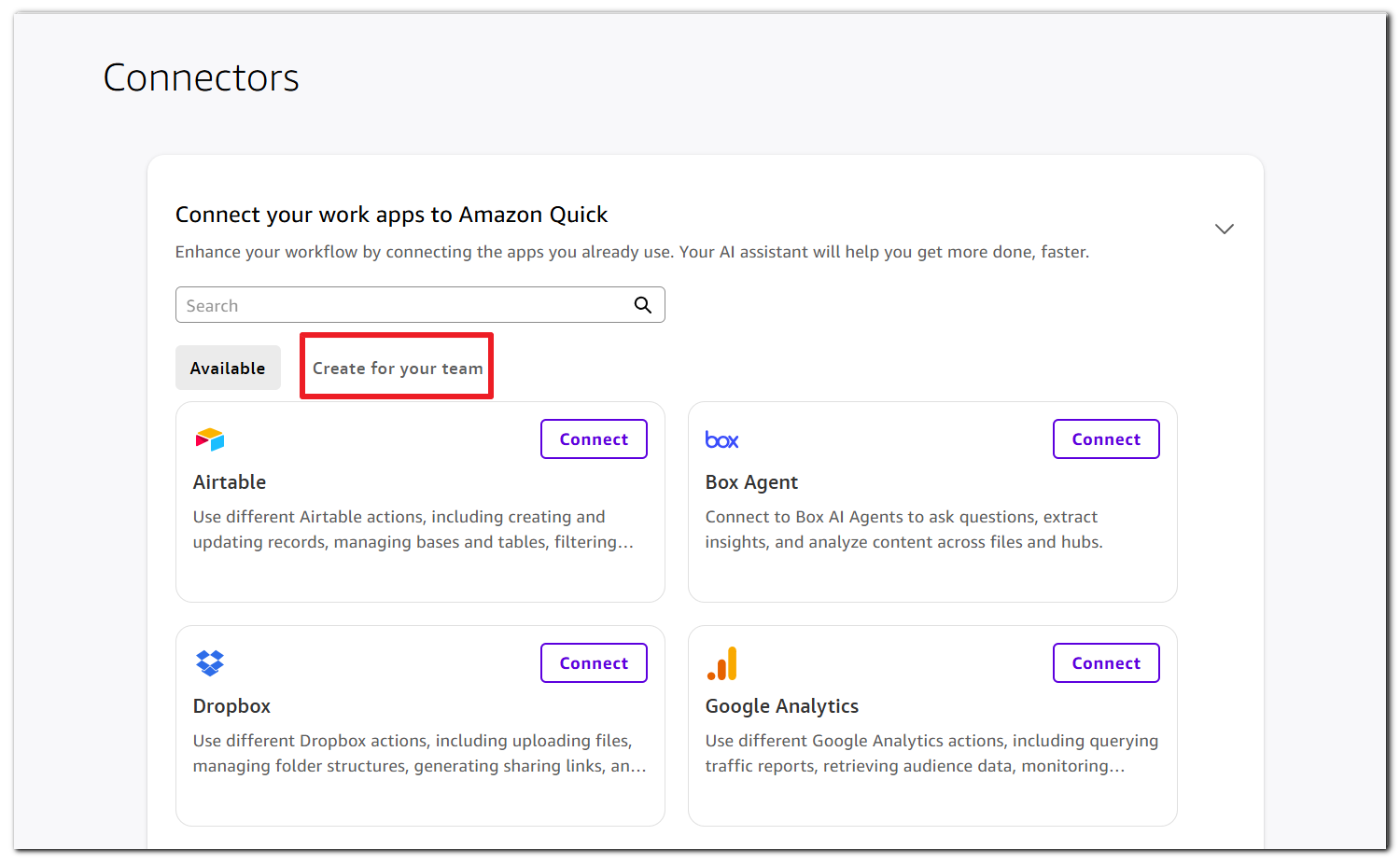
On the Connector page, select Create for your team.
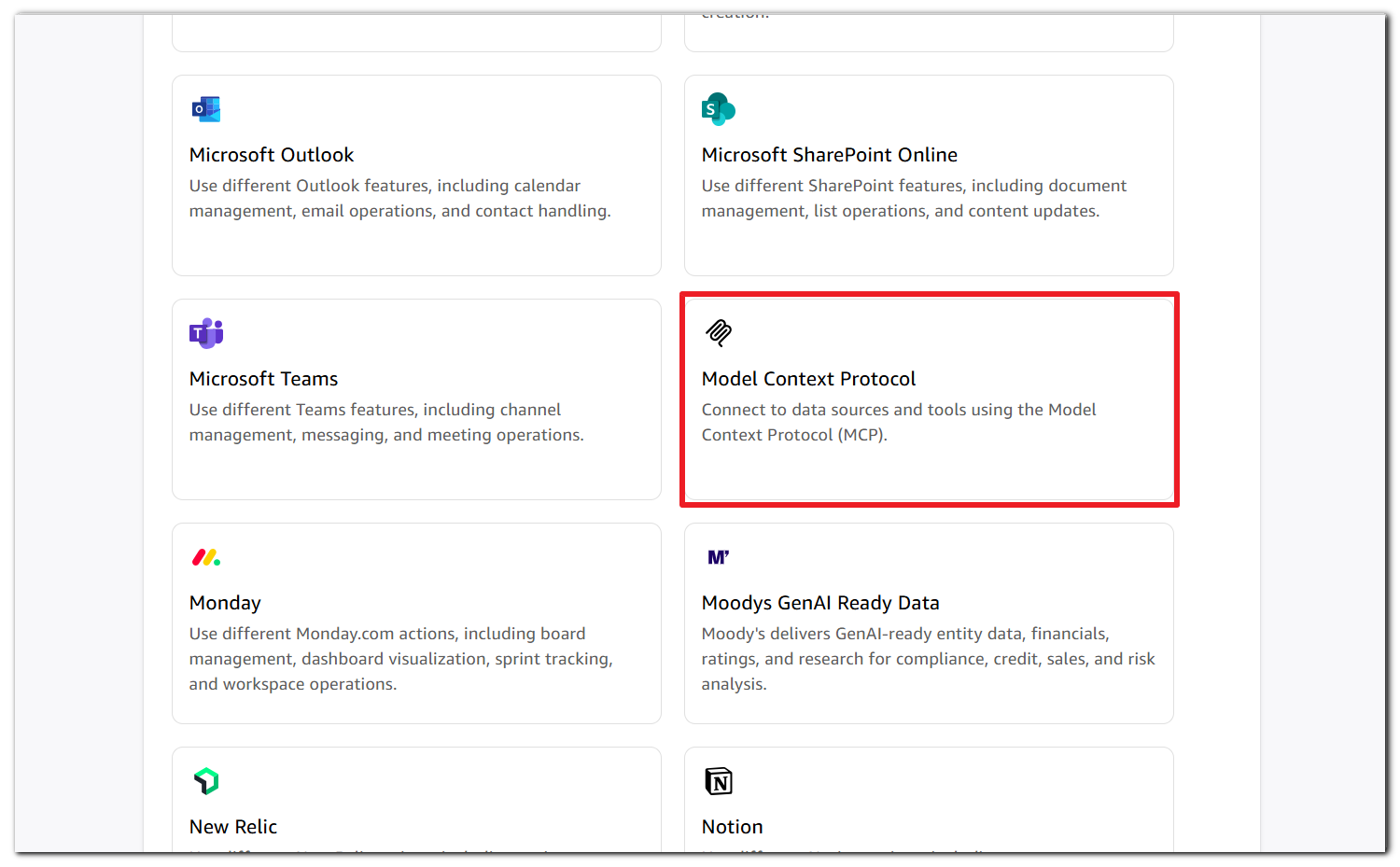
Select the Model Context Protocol tile.
In the Connect step:
For Name enter a descriptive name for the integration.
For Description, enter the purpose of the integration..
For the MCP server endpoint, enter
<CX_BASE_URL>/api/security-mcp/mcp/<TENANT_NAME>. Replace <CX_BASE_URL> and <TENANT_NAME> with the actual values from your Checkmarx One environment.For Connection type, select Public network. Checkmarx One MCP is reachable over the public internet, so no Amazon Quick VPC connection is required.
Click Next.
In the Authenticate step, configure one of the following authentication methods:
Select Service authentication.
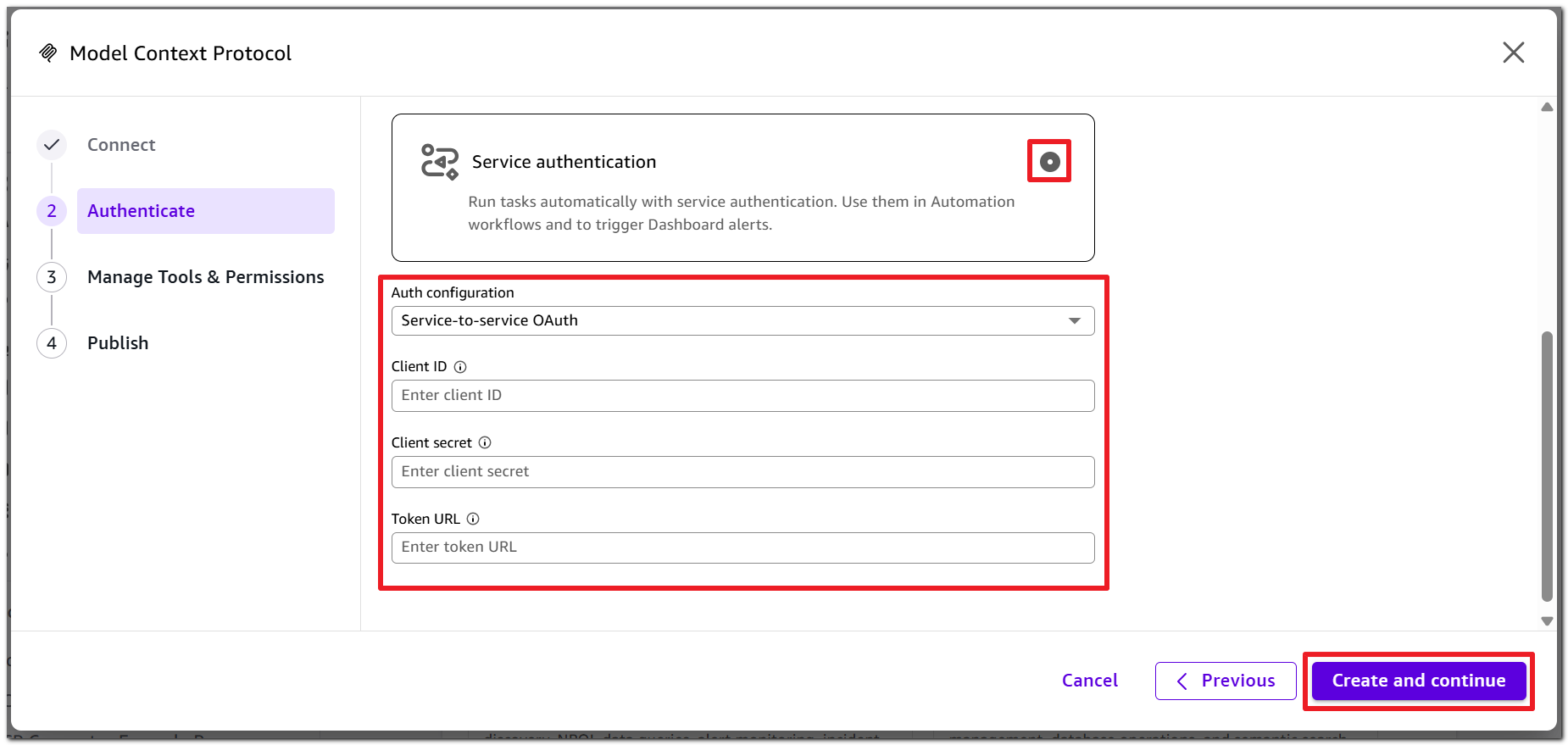
Enter the Client ID and Client secret from your OAuth client.
For Token URL, enter
https://<IAM-BASE-URL>/auth/realms/<TenantName>/protocol/openid-connect/token.Replace <IAM-BASE-URL> and <TenantName> with the values for your Checkmarx One environment. For the complete list of IAM Base URLs, see IAM Base URLs.
Click Create and Continue.
In the Manage Tools & Permissions step, verify that Quick has discovered the available Checkmarx MCP tools.
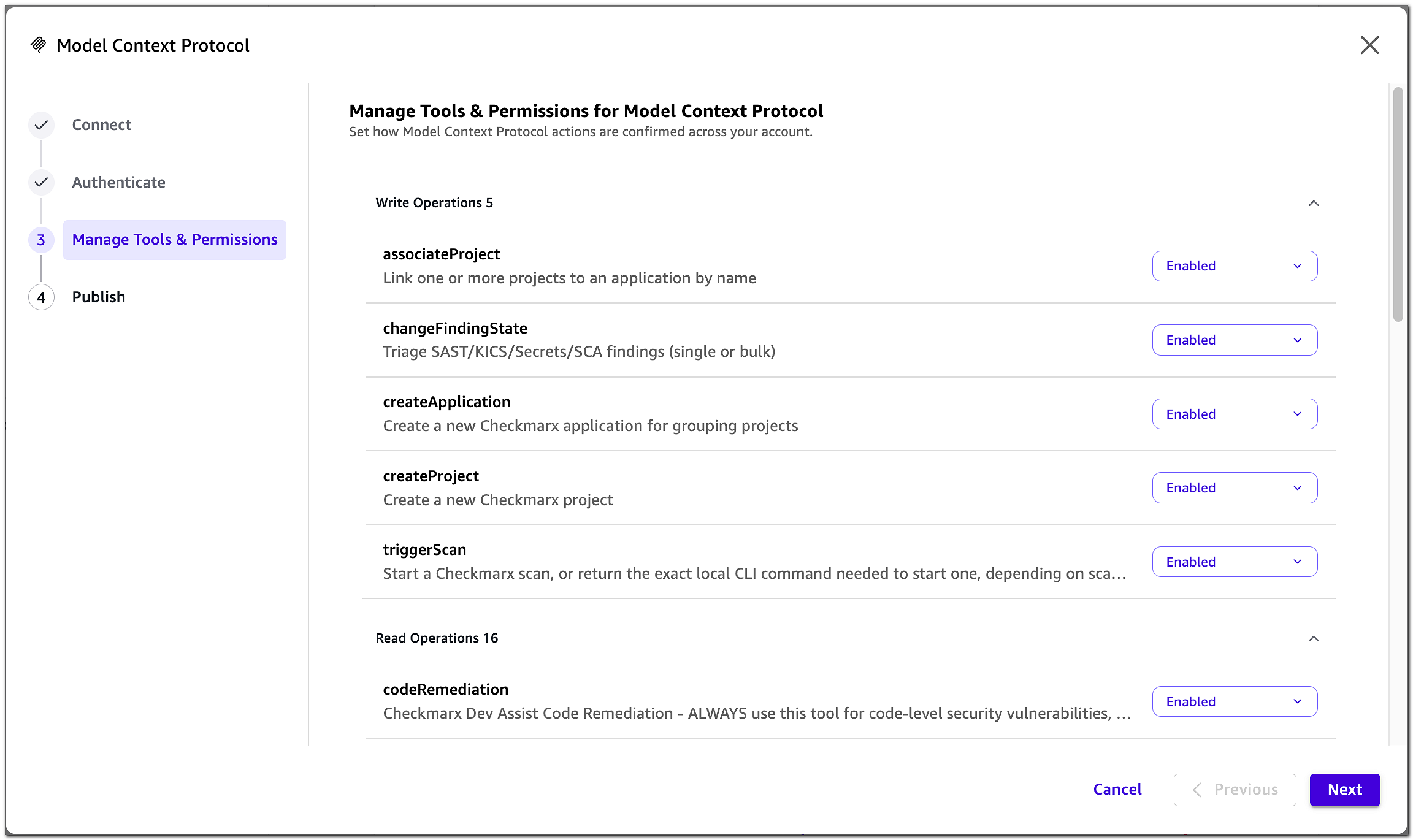
Click Next and then click Publish.
Share the integration with the users who need it. From the connector details page, choose the menu icon (⋮) and select Share. Until the connector is shared, it is available only to the user who created it.
If the integration uses User Authentication, each user must sign in to Checkmarx One before using the Checkmarx MCP tools. On the connector details page, choose Sign in and complete the Checkmarx One login. If the session later expires, choose Re-Connect.
If the integration uses Service Authentication, no individual Checkmarx One sign-in is required. Users access Checkmarx One through the service credentials configured for the integration.
After publishing the integration, open the Quick AI agent and submit a prompt that uses a Checkmarx MCP tool. Verify that the agent can successfully retrieve information from your Checkmarx One environment. For example, ask the agent to list your Checkmarx projects.
Note
Amazon Quick enforces a 60-second timeout on each MCP operation. The
resolveProject,triggerScan, andgetTenantVulnerabilitiesSummarytools are particularly likely to exceed this limit.For
resolveProjectandgetTenantVulnerabilitiesSummaryexecution time can depend on the amount of data retrieved. When using these tools, limit the scope of the request where possible. For example, search for a specific project or use a sufficiently specific search term rather than a broad term that may return a large number of projects.For scans, use
triggerScanto start the scan and then poll with getScanDetails rather than waiting for completion in a single call
Sample Workflow: Weekly Organization-Wide Vulnerability Report
Once the Amazon Quick integration is published, Checkmarx MCP tools are available as actions in Amazon Quick Flows - Quick's workflow builder. You can use these actions to create a recurring workflow that retrieves vulnerability data across your Checkmarx One tenant and generates a weekly report.
Prove the tools work in chat. Open the Quick AI agent and enter a prompt such as "Summarize the current vulnerabilities across my Checkmarx tenant, broken down by severity." The agent runs the following tools:
getTenantVulnerabilitiesSummary— Returns aggregate vulnerability counts for the tenant, grouped by severity.listApplications— Lists the applications in the account, so the summary can be attributed to business units.getApplicationDetails— Retrieves the risk posture for a specific application, for the applications you want broken out individually.
Convert the conversation into a flow. With the conversation open, choose the Quick Flows icon in the chat bar, then choose Create Flow from conversation. Quick generates a natural-language prompt, name, and description from what you just did. Review them and choose Generate Flow.
Alternatively, build the flow directly: choose Flows in the navigation pane, choose Create Flow, and describe the report you want — for example, "Every Monday, summarize all Checkmarx vulnerabilities across my organization by severity and by application, list the ten highest-severity new findings, and email me the result."
Review the generated steps. Confirm the flow uses the Checkmarx action steps you expect and add a reasoning group step if you want the model to rank, filter, or narrate the results rather than return raw counts. Switch to Run mode and run it once manually to verify the output before scheduling.
Put it on a weekly schedule. With the flow open in Run mode, choose the scheduling icon, then Create schedule. Name the schedule, set the recurrence to weekly, and choose a start date and time zone. Provide any default inputs the flow expects, then configure action permissions and choose Save.
Quick emails you when each run completes, with a link to the results. Run history is retained for 30 days and can be filtered to scheduled runs or failed runs.
Use Service Authentication for scheduled flows. Scheduled flows should use Service Authentication so that they do not depend on an individual user's interactive Checkmarx One session. The flow runs with the permissions assigned to the OAuth client, so configure the client with only the permissions required by the workflow.
Use unattended execution only for read-only workflows. Amazon Quick can run scheduled flows without requiring confirmation. Use this option only for workflows that retrieve information. For operations that change data or initiate actions in Checkmarx One, such as triggering scans or remediation, require user confirmation.
Troubleshooting Amazon Quick
Message or symptom | Cause | Resolution |
|---|---|---|
Connector creation fails during authorization | The Amazon Quick callback URI is not registered for the OAuth client. | Contact Checkmarx Support to configure the required Amazon Quick redirect URI. |
Discovery succeeds but publishing fails with | A tool's | Contact Checkmarx Support. This indicates an issue with the server-side tool definition. |
Tool call fails with HTTP 424 | The operation exceeded Amazon Quick's 60-second timeout. | For |
Newly released Checkmarx MCP tools do not appear | Amazon Quick registers the tool list when the integration is created and does not refresh it. | Delete the integration and create it again. |
Using the MCP
Interact with Checkmarx One via natural language chat in your AI assistant. The MCP interprets your instructions and runs the appropriate tools to provide the requested information and initiate the appropriate activities. A single prompt can trigger a series of tools, with the AI Agent requesting confirmation or additional input before moving from one step to the next.
The following is a list of tools by category. More detailed info about each tool is available below in MCP Tools.
Remediation
packageRemediation
codeRemediation
imageRemediation
Scan Workflow
planScan
triggerScan
getScanDetails
getLatestScans
listFindings
getFindingDetails
getTenantVulnerabilitiesSummary
Finding Triage
changeFindingState
changeFindingSeverity
getTriageHistory
Project Management
resolveProject
createProject
listProjects
getProjectConfig
Application Management
listApplications
getApplicationDetails
createApplication
associateProject
Scan History
listScans
Sample Workflows
Scan Project
The MCP can be used to run an E2E flow of triggering a scan, viewing results, identifying risks, and remediating those risks. The process begins by the developer entering a chat "scan this project" (or similar prompt). AI Agent runs the following tools, asking for input and/or confirmation before moving from one step to the next:
resolveProject- Checks if a corresponding project already exists in your Checkmarx One account, based on project name.Notice
To identify a project based on repository URL, other prompts are used. For example, trigger the
listProjectstool by asking the agent to "Show Checkmarx projects", and search for the desired repository URL.createProject- If the project doesn't exist, then a new project is created.getLatestScans- For pre-existing projects, checks if a scan has already run on the same commit, enabling display of results from that scan.planScan- Checks file types and determines which scanners to run.triggerScan- The scan is run using the relevant scanners.getScanDetails- Polls the status of the scan, until it is completed.Notice
For longer scans, the scan will continue running in the background and the user needs to prompt to check for completion.
This tool also provides vulnerability summaries by severity upon scan completion.
The developer can drill down further by asking additional questions like, "show me the critical vulnerabilities", "which packages have critical risks", "Show me all revealed secrets" etc. (triggering additional tools such as
listFindingsandgetFindingDetails.Triage the finding - After reviewing a finding, the developer can change its state or severity by asking, for example, "mark this finding as confirmed", "mark this finding as not exploitable", or "set this finding severity to high" (triggering
changeFindingStateorchangeFindingSeverity). The agent asks for confirmation before applying the change.After identifying a vulnerability that requires remediaton the user can give instructions to remediate by saying "fix it", "find a safer package", "remediate this finding" etc. (triggering
packageRemediation,codeRemediationorimageRemediation).
MCP Tools
The following sections explain the various tools included in the MCP. The tools are grouped by category.
Warning
The "Triggered by (examples)" column is intended to provide general guidance for how these tools can be used. However, the specific phrases haven't been tested and we can't guarentee accurate results.
Remediation
These tools are used to analyze and remediate various types risks.
Warning
These tools require an Checkmarx One Assist, AI Protection or Checkmarx Developer Assist license.
Tool | Triggered by (examples) | Description |
|---|---|---|
|
| Analyze and remediate risk for one specific package or dependency version, including CVEs and malicious package concerns. Use when: user asks whether a specific package is safe, wants to fix a vulnerable dependency, or check if a package is malicious. Requires: packageName, packageVersion, packageManager, issueType. Returns: remediation guidance with safer versions and alternatives when available. |
|
| Provide remediation guidance for one specific code security issue, including SAST findings, exposed secrets, and IaC misconfigurations. Use when: user wants to fix a code vulnerability such as SQL injection, XSS, a hardcoded secret, or an infrastructure misconfiguration. Requires: type (secret/sast/iac). For sast and iac also requires finding metadata. Returns: remediation steps and fix guidance. |
|
| Analyze and remediate risk for one specific container image or base image reference. Use when: user asks whether a container image is safe, wants CVE guidance for an image, or wants a safer base image. Requires: imageName, imageTag. Returns: image-specific remediation guidance and alternatives when available. |
Scan Workflow
Use this set of tools to plan, start, and read scan progress and to view scan summaries and detailed scan results.
Notice
To optimize token usage, summaries are always returned before listing complete findings.
Tool | Triggered by (examples) | Description |
|---|---|---|
|
| Recommend the right Checkmarx scan engines and execution strategy for a target codebase. Use when: scanning requested and engines not specified. Requires:
Returns: recommended engines and whether to use local CLI or repository scanning. |
|
| Start a scan or return the exact local CLI command (via scan_mode). Use when: user asks to scan. Requires: project context and absolute source_path (cli) or project_id + repo_url (api). Returns: scan_id and dashboard URL (api) or local command (cli). |
|
| Get current status of a scan. Use when: user asks for progress or completion. Requires: scan_id. Returns: status and severity summary at completion. |
|
| Return the most recent scans for one project. Use when: recent/latest scans requested. Requires: project_id. Returns: newest-first list. |
|
| Return individual findings from a completed scan with filtering/sorting. Use when: browsing or filtered lists. Requires: scan_id. Returns: triage-ready findings. |
|
| Deep details for one finding. Use when: explain a specific finding by ID. Requires: scan_id, finding_id. Returns: location, data flow, remediation metadata. |
|
| Returns tenant-level vulnerability analytics (engine + time window). Results are not tied to a single scan. To query for engine specific summaries, use the exact engine names: SAST, SCA, IaC, Secret Detection or API Security. |
Finding Triage
Use these tools to review triage history and update the state or severity of supported scanner findings.
Note
Triage tools are not yet supported for the API Security scanner.
State and severity changes require explicit user confirmation before they are applied.
Tool | Triggered by (examples) | Description |
|---|---|---|
|
| Change the state of one or more SAST or SCA findings, or the state of an SCA package. Use when: the user wants to change a finding state or an SCA package state. Supports: standard finding states; SAST custom states; and SCA package states (MONITORED, MUTED, SNOOZE). Requires: project context, finding identifiers, target state, comment, and explicit user confirmation. Returns: state-change result. |
|
| Change the severity of one or more SAST findings or the rating of SCA vulnerability or supply-chain-risk findings. Use when: the user wants to change a SAST severity or an SCA vulnerability/supply-chain-risk rating. Supports: CRITICAL, HIGH, MEDIUM, LOW, and INFO for SAST; rating/score overrides for SCA vulnerabilities and supply-chain risks. SCA packages do not have a severity or rating. Requires: project context, finding identifiers, target severity or rating, comment, and explicit user confirmation. Returns: severity/rating-change result. |
|
| Return the triage history for a previously triaged SAST finding or SCA risk, including who commented, when, and the comment text. Use when: the user asks for previous triage activity or comments on a finding. Requires: project context and finding identifiers. Returns: triage history for the finding. |
Project Management
Tool | Triggered by (examples) | Description |
|---|---|---|
|
| Find the project matching a given name. Use when: workflows need project_id or existence check. Requires: project_name. Returns: matching project or not-found. |
|
| Create a new project after user approval. Requires: name. Returns: project_id. |
|
| Browse/search projects with pagination. Returns: project list. |
|
| Full configuration for one project by ID. Requires: project_id. Returns: repository settings, tags, timestamps. |
Application Management
Tool | Triggered by (examples) | Description |
|---|---|---|
|
| Browse/search applications with pagination; helpful to obtain Returns: applications page. |
|
| Full details of one application by ID. Requires: Returns: tags, project associations, criticality. |
|
| Create a new application. Requires: name. Returns: |
|
| Link one or more projects to an application without removing existing associations. Requires: Returns: association result. |
Scan History
Tool | Triggered by (examples) | Description |
|---|---|---|
|
| Browse scans by project, status, branch, date range, and source. Returns: paginated scan list. |