Risk Orchestration
Risk Orchestration provides a unified view of all scan results across your security engines in a single, consolidated table. Instead of reviewing findings separately in each scanner, you can see everything in one place, organized by severity, and act on it without switching contexts.
Risk Orchestration is designed for everyone involved in application security:
Developers can quickly locate and understand specific vulnerabilities in their code, review fix suggestions, and see exactly which file and line is affected.
AppSec managers can monitor vulnerability trends across projects, track triage activity, and see who initiated each scan, helping identify whether development teams are reducing the vulnerabilities they introduce over time.
CISOs can assess overall risk exposure at a glance, prioritize internet-facing assets, and have confidence that all scanner results are visible in one authoritative view.
This screen also provides access the AI Triage & Remediation capabilities. You can view results from AI Triage and AI Remediation that have run by an automated process on your risks. You can also manually run these features for specific risks from this screen.
Accessing Risk Orchestration
Important
In order to access the Risk Orchestration page, you need to have the following permissions: view-projects, view-scans, and view-results.
You can open Risk Orchestration from two entry points.
From the ASPM menu
In the left navigation pane, go to ASPM > Risk Orchestration.
In the Select a project panel, search for or select a project.
Click Load Project.
From the Projects page
In the left navigation pane, go to Workspace > Projects.
Locate the project you want to review. The Scanner Results column shows which engines ran on the project during the last scan. Color indicates severity: darker colors represent more critical findings.
Click anywhere on the project row to open Risk Orchestration for that project.
Note
To open the project's overview page instead, click the project name directly.
Reviewing Scan Results
The Risk Orchestration table displays all findings from the last scan, across all engines. By default, results are grouped by severity (Critical, High, Medium, Low, Info). Each group can be expanded or collapsed.
If the project is identified as publicly accessible, an Internet-Facing badge ( ) is shown next to the project's name in this unified table, so you can quickly spot and prioritize publicly accessible projects when assessing risk. This badge is sourced from data provided by Cloud Insights, so it's only available for accounts with a configured Cloud Insights integration.
Each row shows:
Column | Description |
|---|---|
Severity | The risk level of the finding |
Scanner | Which engine detected it (SAST, SCA, or IaC) |
Risk Name & Status | The vulnerability name and whether it is a new finding |
Attackability | Shows whether a finding can realistically be exploited by an attacker in your application. Attackability is determined by AI Triage. |
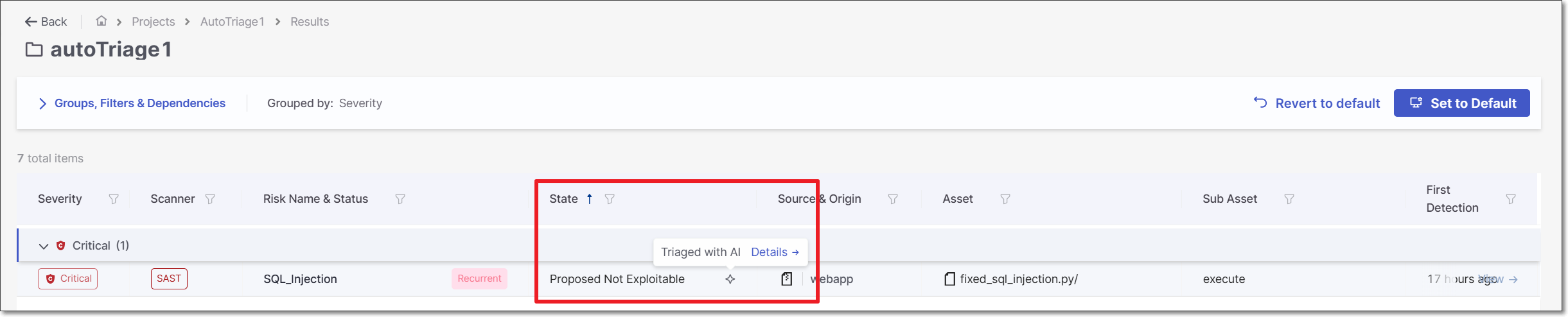
State | The current triage state. If the state was set by AI Triage, an AI icon (◇) is shown next to it. Hover over the icon for a link to show the AI analysis details in the side panel. |
Remediation | Shows the AI Remediation status for a risk and, when a pull request was created, provides a link to the PR. Possible statuses:
|
Source & Origin | The branch or reference from which the scan was triggered |
Asset | The repository or resource where the vulnerability was found |
Sub Asset | The specific file, function, or component within the asset |
First Detection | When the vulnerability was first identified |
Changing the grouping
Click Groups, Filters & Dependencies at the top of the table.
Under Grouped by, switch from Severity to Scanner (or another available option) to reorganize the table.
Sorting and filtering
Every column supports sorting and filtering. Click the filter icon next to any column header to apply a filter. Use these controls to focus on specific scanners, severities, states, or assets.
Managing columns
The Risk Orchestration table lets you customize which columns are displayed, in what order, and how they're used to filter and sort risk data.
Because each engine exposes a different set of attributes, shared columns remain consistent across all engines, while engine-specific columns are also available so you can drill into the context most relevant to a given risk type. This allows you to tailor the table to your team's workflow instead of working with a fixed, one-size-fits-all layout.
To open the Columns Management panel:
In the Risk Orchestration table, click the Columns Management icon (
 ) in the top-right corner of the table.
The Columns Management panel opens, listing all available columns.
In the Columns Management panel, each column has a toggle next to it.
Toggle a column on to display it in the table.
Toggle a column off to hide it from the table.
Some columns are pinned by default and cannot be hidden or reordered. Pinned columns are indicated by a pin icon. You can pin up to three columns at a time.
To change the order in which columns appear in the table, use the drag handle to the left of the column name to drag it up or down in the list.
Any visible column can be used to filter or sort the table.
After adjusting your columns do one of the following:
To save your changes and update the table view, click Apply.
To discard your changes and close the panel without applying them, click Cancel.
Your column preferences, including visibility, order, and pinned columns, are saved to your user profile and persist across sessions, so the table appears as you configured it the next time you access Risk Orchestration.
Viewing Vulnerability Details
Click any row in the results table.
A side panel opens on the right, showing the vulnerability name, severity, scanner, and current state.

Use the tabs in the panel to explore different aspects of the finding. To open the full details page, click Full Details in the top-right corner of the panel at any time.
Every vulnerability has a Triage → button in the side panel for manual triage (see Manual Triage). If your account has AI Triage & Remediation enabled, two additional buttons appear alongside Triage: Triage with AI and Remediate with AI. Clicking either runs the corresponding AI agent on the selected risk and consumes Checkmarx Credits.
Notice
AI Triage & Remediation is currently supported only for SAST and SCA risks. For IaC risks, only the manual Triage button is shown.
Once AI Triage or AI Remediation has run on a risk, the header of the side panel shows the outcome, consistent with the Attackability column in the table.
Issue
The Issue tab shows the precise location of the vulnerability in your code. It includes the full file path, the file type, and a syntax-highlighted code snippet with the affected line flagged.
For SAST findings, the Full Details view expands the Issue tab to show the complete Attack Vector - the end-to-end data flow from the tainted input to the vulnerable sink. The attack vector is represented as a sequential list of nodes (source node, intermediate propagation steps, and sink node), each linked to the corresponding line in the code. The Best Fix Location (BFL) - the point in the flow where the vulnerability is most efficiently remediated - is marked inline in the code view.
Remediation
The Remediation tab provides remediation guidance tailored to the specific finding. It includes:
Found Value: The exact condition or configuration detected that constitutes the vulnerability.
Expected Value: The secure value, pattern, or configuration that should replace it.
For SCA findings, the tab also includes recommended package upgrades where a safer version is available.
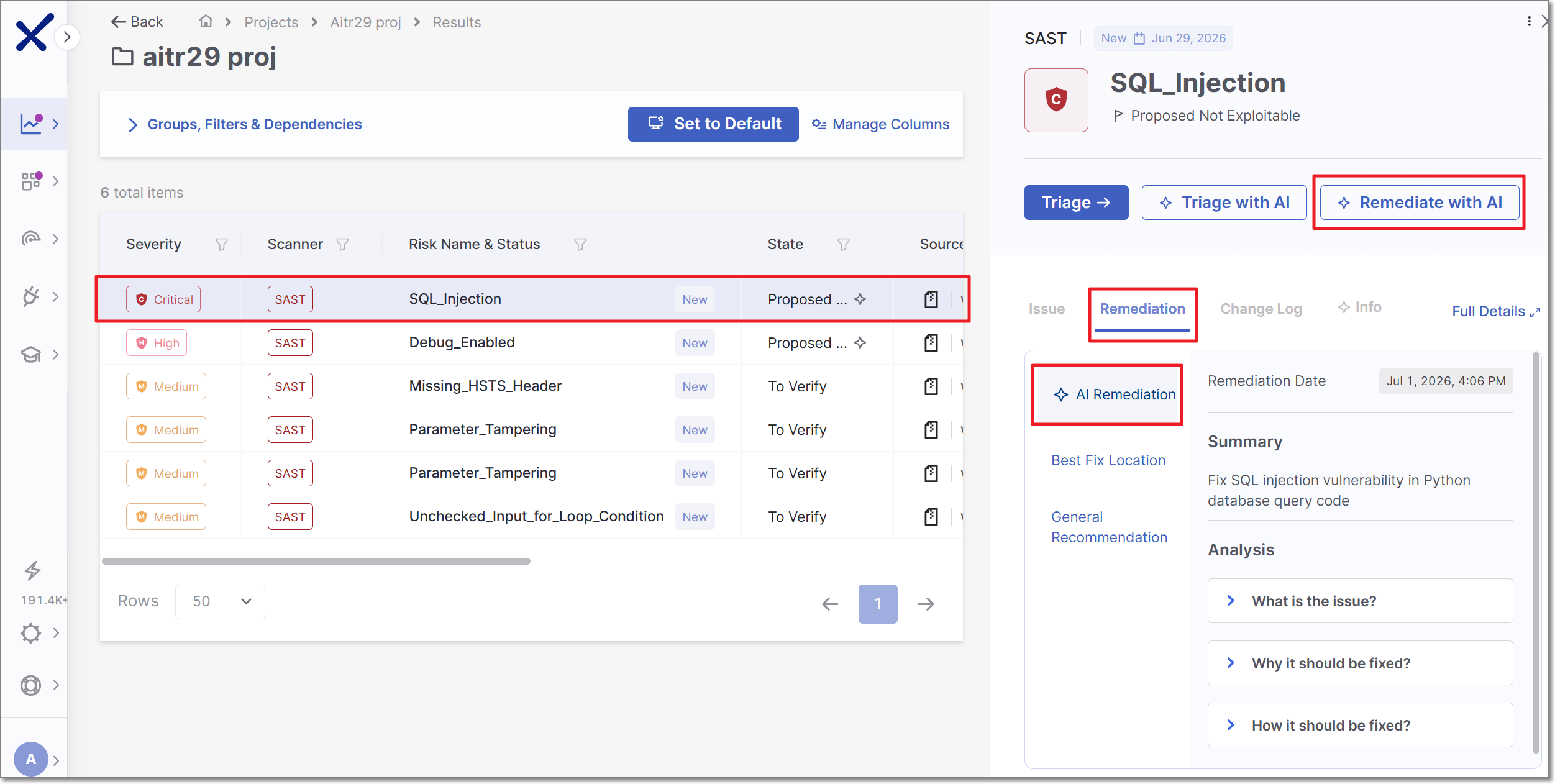
Once AI Remediation has been run on the risk, this tab also shows an expandable Analysis section with three sections: What is the issue?, Why it should be fixed?, and How it should be fixed?.
Change Log
The Change Log tab provides a full audit trail of all triage activity on the vulnerability. Each entry includes:
Any note attached at the time of triage
The user who performed the action
The date and time the action was taken
If no triage actions have been taken, the tab displays "No data available."
Notice
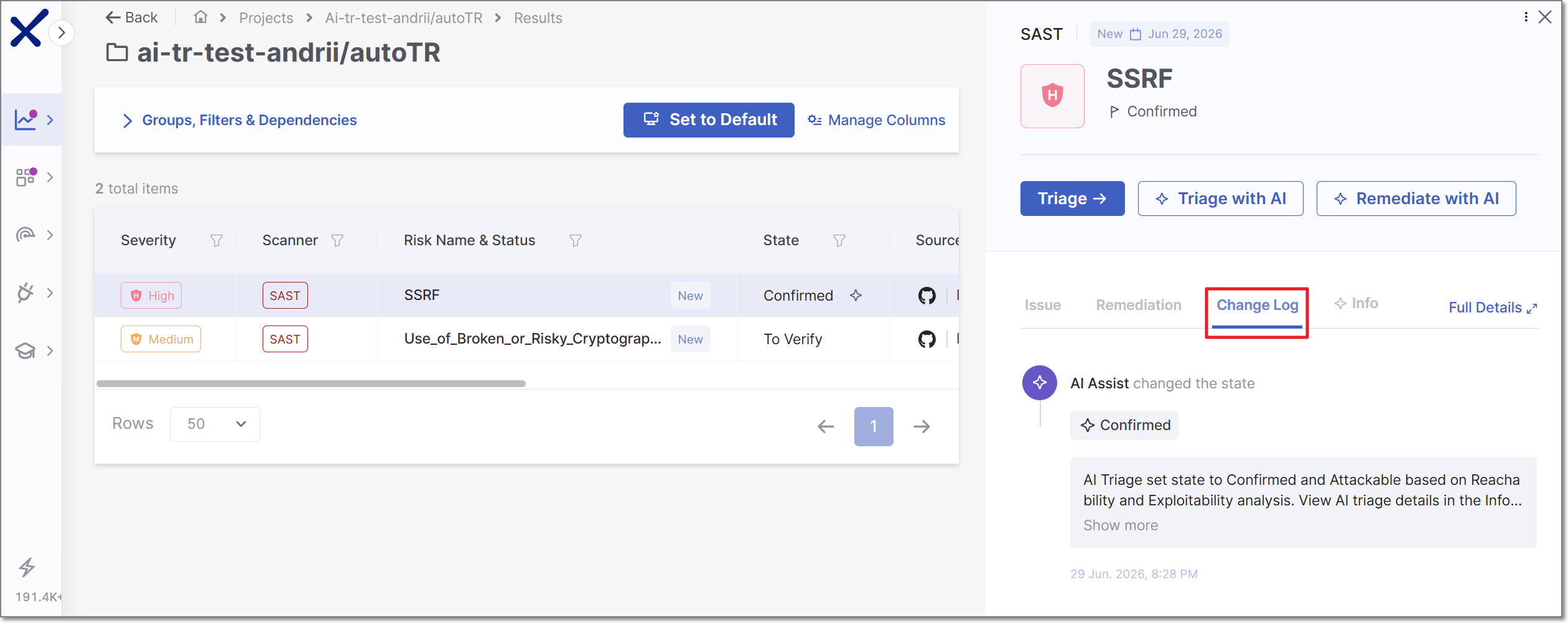
State changes made by AI Triage appear here too, attributed to "AI Assist" rather than a specific user. Click Show more to view the reasoning behind the change.
For AI Triage changes, the user who triggered the triage—either manually or through automatic configuration—is also identified. A link to the AI Triage summary in the Info tab is also provided.
Info
The Info tab is organized into three sections:
Vulnerability Details: Technical metadata about the finding, including: Similarity ID, Source Node, Source File, Sink Node, and Sink File. For SCA findings, this section also includes: affected package name, manifest file, dependency type, risk score, exploitability rating, reachability, exploitability method, and exploitability path (where detected).
Description: A plain-language explanation of the vulnerability class, why it represents a risk, and its potential impact.
About Your Scan: Metadata about the scan that produced the finding, including the scan initiator. This information helps AppSec managers and CISOs track whether development teams are reducing the vulnerabilities they introduce over time.
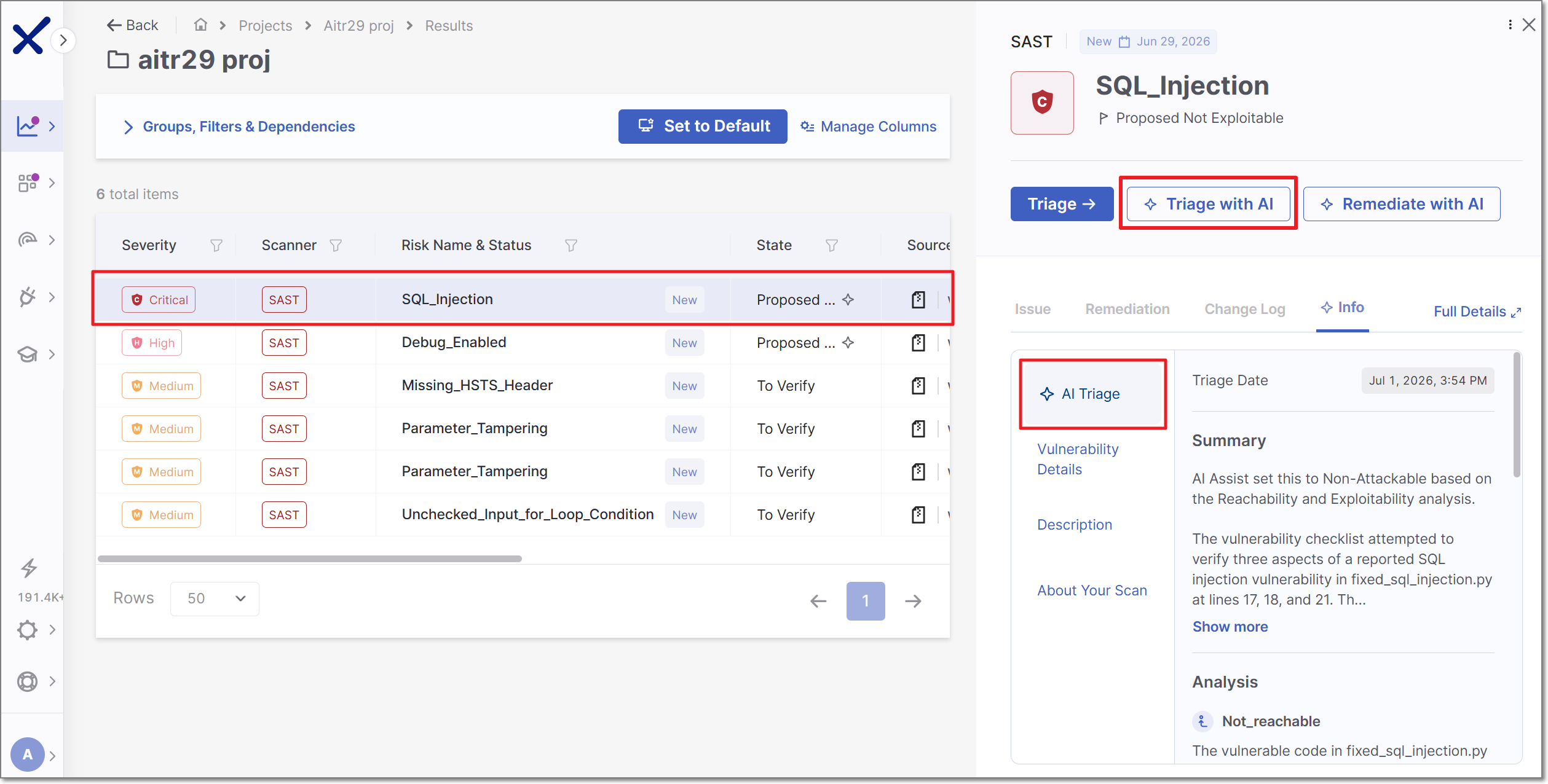
If your account has an AI Triage & Remediation (AI T&R) enabled, an additional AI Triage option appears at the top of this tab. Once AI Triage has been run on the risk, this tab shows a summary of the risk assessment as well as an Analysis section with AI's determination of whether or not the vulnerability is Reachable and/or Exploitable.
Manual Triage
Triaging lets you update the state and severity of a vulnerability and attach a note for your team. You can triage directly from the side panel without losing your place in the results table.
For more information on manual SCA triage, see Triaging SCA Results.
Click a row to open the side panel.
Click the Triage → button.
The Triage Result panel opens.
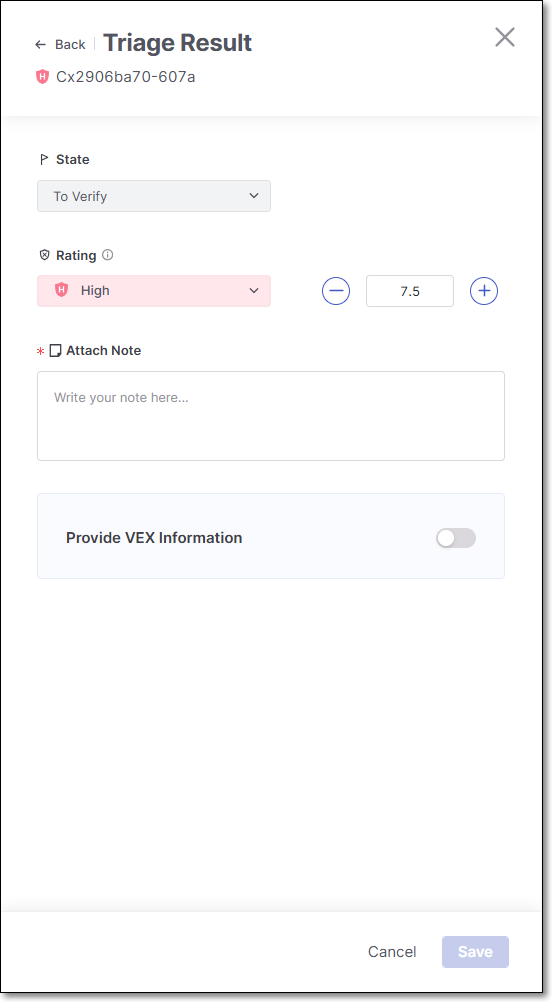
To change the state, click on the State field, and select from the drop-down list the desired state.
To change the severity, either click on the Rating field and select from the drop-down list the desired severity or customize the severity score using the + / - buttons.
Note
Changing the severity score from the drop-down list will assign the lowest severity from that level (e.g., selecting Medium, the risk will be assigned a score of 4.0).
In the Attach Note section, enter your comment. For example, you can add resources related to the vulnerability, assessment of exploitability in the context of your code, remediation steps, assignment of responsibility for remediation etc.
Warning
After changing the state, you are required to add a comment explaining the rationale behind the change before the option to Approve the change becomes available.
If you would like to adjust the VEX parameters, proceed as follows:,
Adjust the Provide VEX Information toggle to enable VEX options.
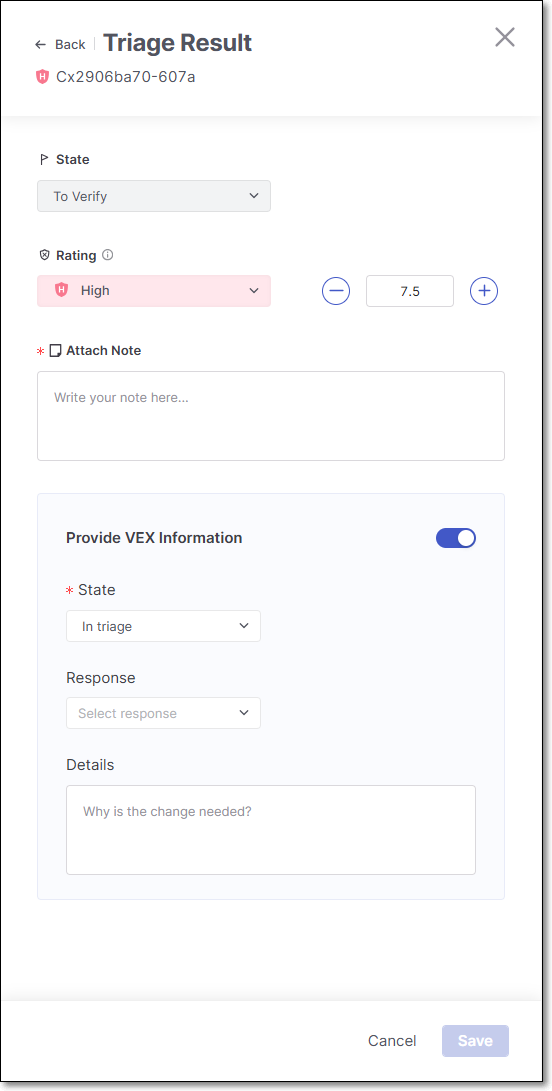
By default, VEX state is mapped from the risk state set in the regular triage workflow as follows:
If the risk state =
To Verify, the VEX state will default toIn triage.If the risk state =
Not Exploitable, the VEX state will default toNot affected.If the risk state =
Confirmed, the VEX state will default toExploitable.
Adjust the State using the dropdown. Options are: Resolved, Resolved with pedigree, Exploitable, In triage, False Positive, Not affected.
If Not affected is selected, specify the Justification using the dropdown.
Adjust the Response using the dropdown. Options are: Can not fix, Will not fix, Update, Rollback, Workaround available.
In the Details field, add a comment why the change is needed.
Click Save.
The results table updates immediately to reflect the new state. The vulnerability row remains selected so you can continue reviewing without losing context. The triage action and any note you added are recorded in the Change Log.
For more information on manual SAST triage, see Triaging SAST Results.
Click a row to open the side panel.
Click the Triage → button.
The Triage Result panel opens.
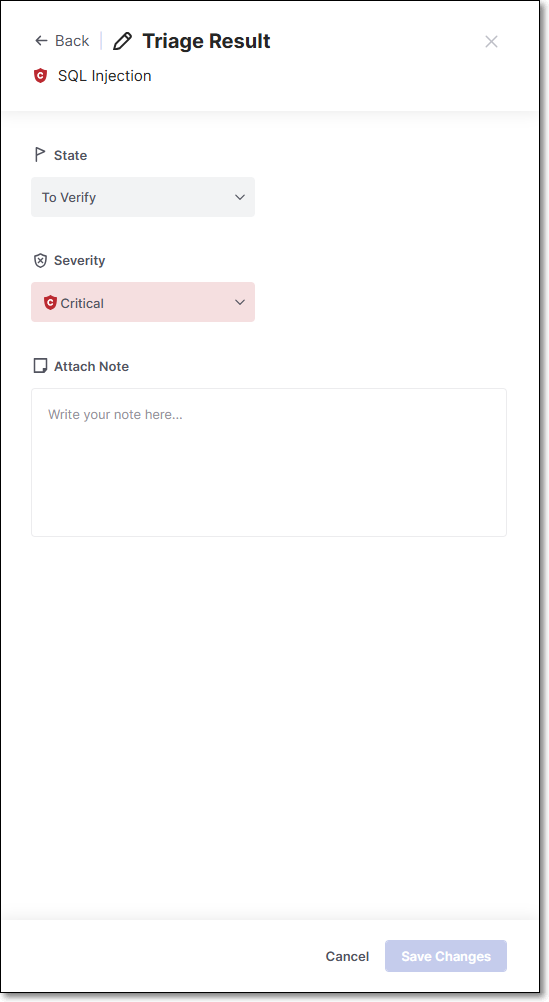
To change the state, click on the State field, and select from the drop-down list the desired state.
To change the severity, either click on the Severity field and select from the drop-down list the desired severity.
In the Attach Note section, enter your comment. For example, you can add resources related to the vulnerability, assessment of exploitability in the context of your code, remediation steps, assignment of responsibility for remediation etc.
Click Save Changes.
The results table updates immediately to reflect the new state. The vulnerability row remains selected so you can continue reviewing without losing context. The triage action and any note you added are recorded in the Change Log.
For more information on manual IAC Security triage, see Triaging IaC Security Results.
Click a row to open the side panel.
Click the Triage → button.
The Triage Result panel opens.
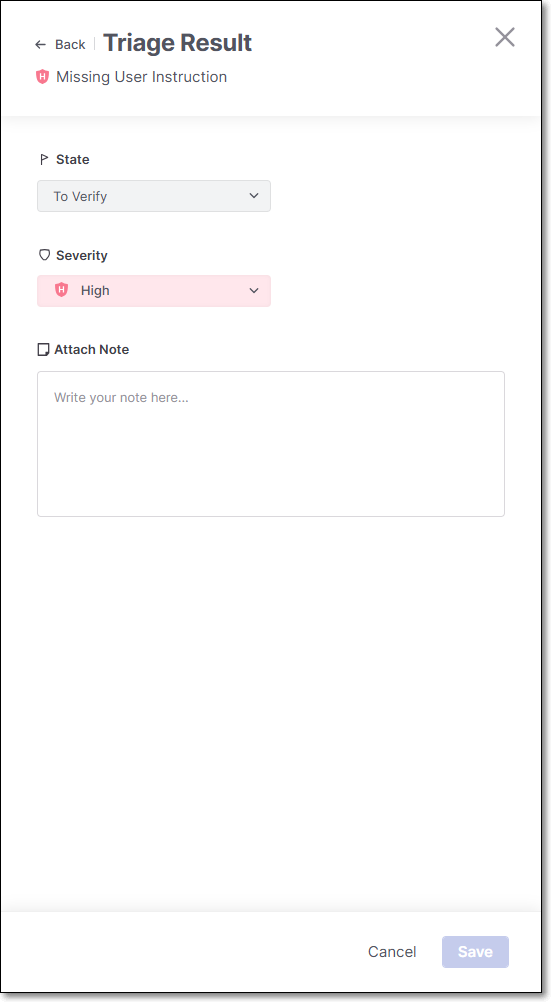
To change the state, click on the State field, and select from the drop-down list the desired state.
To change the severity, either click on the Severity field and select from the drop-down list the desired severity.
In the Attach Note section, enter your comment. For example, you can add resources related to the vulnerability, assessment of exploitability in the context of your code, remediation steps, assignment of responsibility for remediation etc.
Click Save.
The results table updates immediately to reflect the new state. The vulnerability row remains selected so you can continue reviewing without losing context. The triage action and any note you added are recorded in the Change Log.
Bulk Triaging Multiple Vulnerabilities
To bulk triage multiple vulnerabilities, select the checkboxes next to the desired items and click the Triage -> button at the top of the screen. Then, follow the procedures detailed above for the respective scanner (SCA, SAST, or IAC Security).
AI Triage and Remediation
You can run AI Triage and AI Remediation on a selected risk within the Risk Orchestration screen:
Note
To manually run AI Triage or AI Remediation from Risk Orchestration, you must have the following permissions:
AI Triage -
view-resultsandupdate-resultAI Remediation -
view-risk-managementandupdate-risk-management
Click on a row to open the side panel.
Click Triage with AI to have the AI agent assess Reachability and Exploitability and, where justified, automatically update the State. Results appear in the Info tab's AI Triage section and in the Change Log.
Click Remediate with AI to generate a suggested code fix. Results appear in the Remediation tab. For GitHub Code Repository Integration projects, this also creates a pull request.
Warning
Manual activation of both actions from this screen is currently supported only for SAST and SCA risks.
Each run consumes Checkmarx Credits; re-running on an already-triaged identical result does not consume additional credits. See Monitoring Checkmarx Credit Consumption for details, and AI Triage & Remediation for automated (non-manual) ways to trigger these agents, such as on scan completion or via GitHub pull requests.
Viewing AI Triage & Remediation Results
Once an AI action has run on a risk in this project - whether manually from this screen or via automatic configuration - its outputs surface in the same places you'd look for any other triage or remediation info:
Results table: an AI icon (◇) in the State column marks AI-driven state changes.
Info tab: an AI Triage section with the summary and Reachability/Exploitability analysis.
Remediation tab: the suggested fix, with a linked pull request for GitHub-integrated projects.
Change Log: an audit entry attributed to AI Assist that identifies the user who triggered the AI Triage and provides a link to the AI Triage section in the info tab.
For an organization-wide view of AI Triage & Remediation activity — total triages/remediations run, unique developers, estimated time saved — see the AI Triage & Remediation Dashboard in Analytics.