Managing External Imports
The Workspaces > External Imports tab enables you to upload vulnerability findings from third-party security tools into Checkmarx One and manage your imported results.
You can import SARIF files, associate findings with existing projects, monitor import status, review vulnerability counts and risk levels, and access the imported findings in the BYOR Results Viewer. You can also view previous imports, copy import IDs, and delete import records.
For information about supported file formats, specifications, and import limits, see Bring Your Own Results (BYOR).
Importing External Results
You can import vulnerability findings from external security tools using SARIF 2.1.0 files.
To import external results:
Navigate to Applications and Projects > External Imports.
Click + Import.
The Import dialog opens.
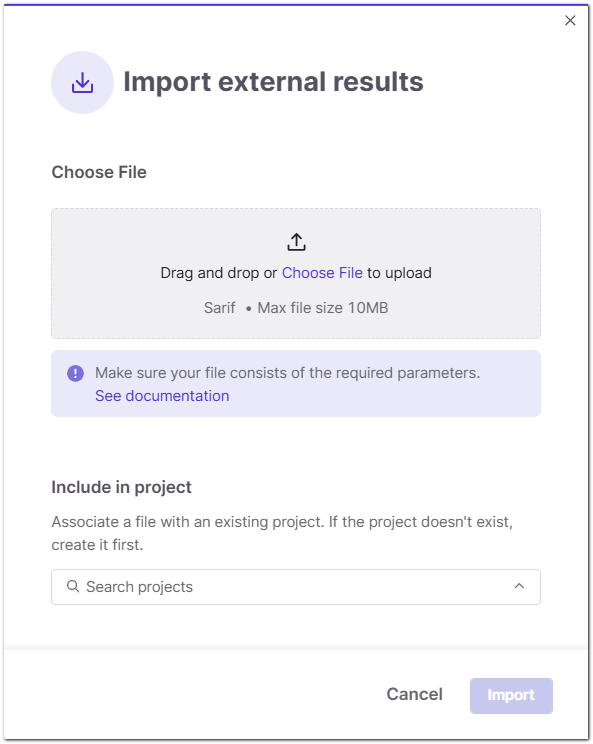
Upload a SARIF file using either of the following methods:
Drag and drop the file into the upload area.
Click Choose File and select the file from your computer.
The maximum supported file size is 10 MB.
Select the existing Checkmarx One project to associate with the imported findings.
Click Import.
The file is submitted for processing. You can monitor its status in the External Imports table.
Viewing External Imports
The External Imports tab displays a list of imported results, including their associated projects, originating security tools, vulnerability counts, and processing status.
To view the list, navigate to Workspaces > External Imports.
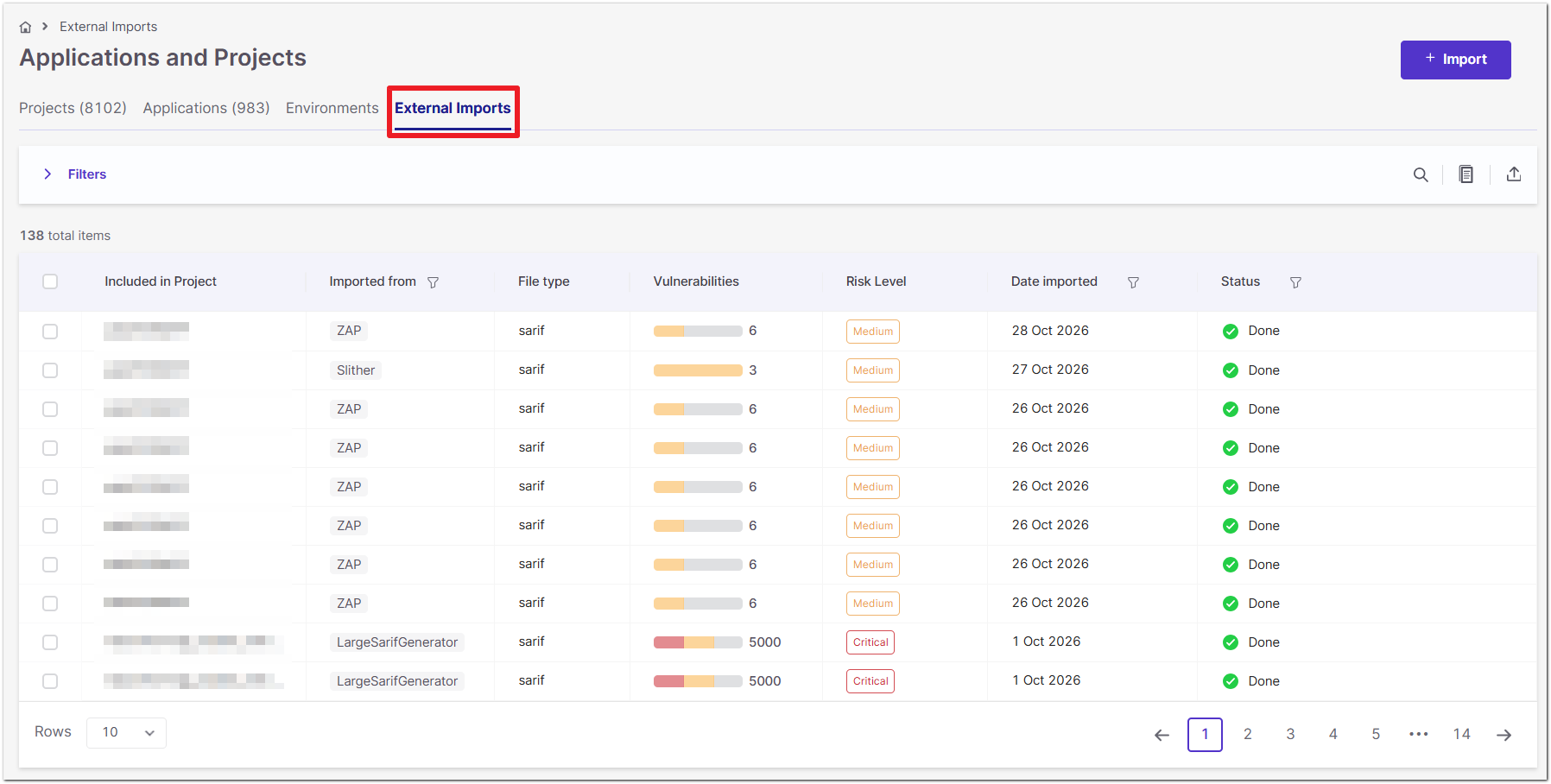
The following information is displayed for each import:
Column | Description |
|---|---|
Included in Project | The Checkmarx One project associated with the imported findings. |
Imported from | The name of the external security tool that generated the results. |
File type | The format of the imported file, such as SARIF. |
Vulnerabilities | The number of vulnerabilities included in the import, with a color-coded distribution by severity. |
Risk Level | The overall risk level associated with the imported results. |
Date imported | The date on which the results were imported into Checkmarx One. |
Status | The processing status of the import, such as Done for a successfully completed import. |
The table displays the total number of import records and provides pagination controls for navigating between pages. You can also select the number of rows displayed per page.
Filtering and Searching Imports
You can use the filtering and search controls to locate specific imports.
To filter imports:
Expand Filters above the External Imports table, or click the filter icon in a supported column.
Select the relevant filter values.
Review the matching imports in the table.
Column-level filtering is available for Imported from, Date imported, and Status.
You can also use the search icon above the table to search for imports.
Viewing Imported Results
You can open a completed import to investigate its vulnerabilities in the dedicated BYOR Results Viewer.
To view imported results:
Navigate to Applications and Projects > External Imports.
Locate the relevant import in the table.
Click View in the corresponding row.
The BYOR Results Viewer opens, displaying the vulnerabilities associated with the selected import.
You can group and filter the vulnerabilities, review individual findings, and access their remediation and result information.
For more information, see BYOR Results Viewer.
Reimporting Results
You can import additional SARIF files from the same security tool into an existing project or import the same file into different projects.
Each import is retained as a separate record in the External Imports table. You can open individual imports to view the vulnerabilities included in their respective files.
When a vulnerability is identified again in a subsequent import into the same project, its status is displayed as Recurrent, and its previously assigned triage state is retained.
When the same vulnerability is imported into a different project, it is treated as a new finding, with the status New and the default state To Verify. Triage decisions from the original project are not transferred.
For information about how Checkmarx One identifies matching vulnerabilities and preserves triage decisions, see Triaging BYOR Results.
Managing Existing Imports
You can copy an import's unique identifier or delete an import from the External Imports table.
To access these actions, locate the relevant import, hover over its row, and click the three-dot menu next to View.
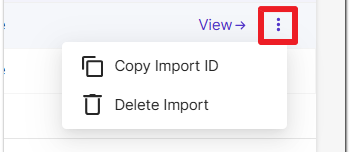
Copying an Import ID
Each import has a unique identifier that can be used to reference the import.
To copy an import ID:
Locate the import in the External Imports table.
Click the three-dot menu next to View.
Select Copy Import ID.
The import ID is copied to your clipboard.
Deleting an Import
You can delete an import from the External Imports table.
To delete an import:
Locate the import you want to delete.
Click the three-dot menu next to View.
Select Delete Import.
If a confirmation dialog appears, follow the prompts to confirm the deletion.