BYOR Results Viewer
The Bring Your Own Results (BYOR) Results Viewer enables you to view and investigate vulnerability findings imported from third-party security tools into Checkmarx One. You can examine individual vulnerabilities, review their severity and status, and use grouping and filtering options to organize the results.
The viewer displays findings associated with a Checkmarx One project, including vulnerability details and remediation information provided in the imported SARIF files.
For information about uploading external findings, see Managing External Imports.
Accessing the BYOR Results Viewer
To access the BYOR Results Viewer:
Navigate to Applications and Projects > External Imports.
Locate the relevant import in the External Imports table.
Click View for the import you want to examine.
The Import Results page opens, displaying the imported vulnerabilities associated with the selected project.
Understanding the Results Table
The BYOR Results Viewer displays imported vulnerabilities in a table, with each row representing an individual finding.
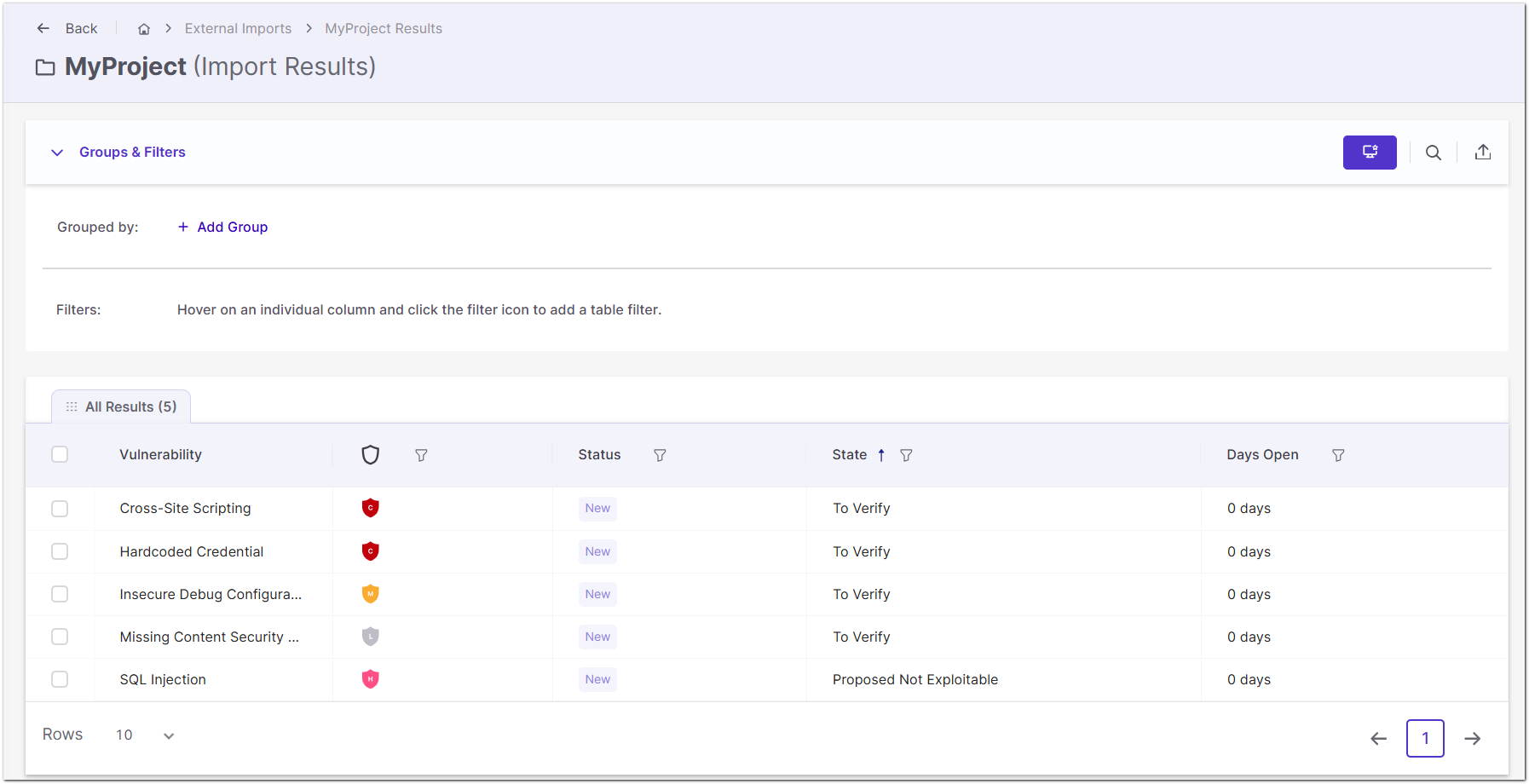
The All Results tab displays the total number of findings. You can select a vulnerability to examine its details or use the table controls to organize and filter the results.
The following columns are available:
Column | Description |
|---|---|
Vulnerability | The name of the vulnerability, as identified by the external security tool. |
Severity | The severity assigned to the vulnerability, indicated by a color-coded shield icon. |
Status | The vulnerability's status, such as New or Recurrent. |
State | The current triage state of the vulnerability, such as To Verify or Not Exploitable. |
Days Open | The number of days the vulnerability has been open. |
You can select vulnerabilities using the checkboxes beside individual rows. The checkbox in the table header enables you to select all displayed results.
The results table also provides pagination controls for navigating between pages and selecting the number of rows displayed per page.
Grouping and Filtering Results
You can group and filter imported vulnerabilities to organize findings and focus on specific results.
Grouping Results
Grouping organizes vulnerabilities according to selected attributes.
To group results:
Expand Groups & Filters above the results table.
Click + Add Group.
Select one or more of the following grouping criteria:
Severity — Groups vulnerabilities according to their severity levels.
Status — Groups vulnerabilities according to their status.
State — Groups vulnerabilities according to their triage state.
Click Select.
The results are organized according to the selected grouping criteria.
Filtering Results
You can filter the results using the filter icons in the table columns.
The following filters are available:
Filter | Description |
|---|---|
Severity | Displays vulnerabilities with the selected severity levels. |
Status | Displays vulnerabilities with the selected statuses. |
State | Displays vulnerabilities with the selected triage states. |
Days Open | Displays vulnerabilities according to how long they have been open. |
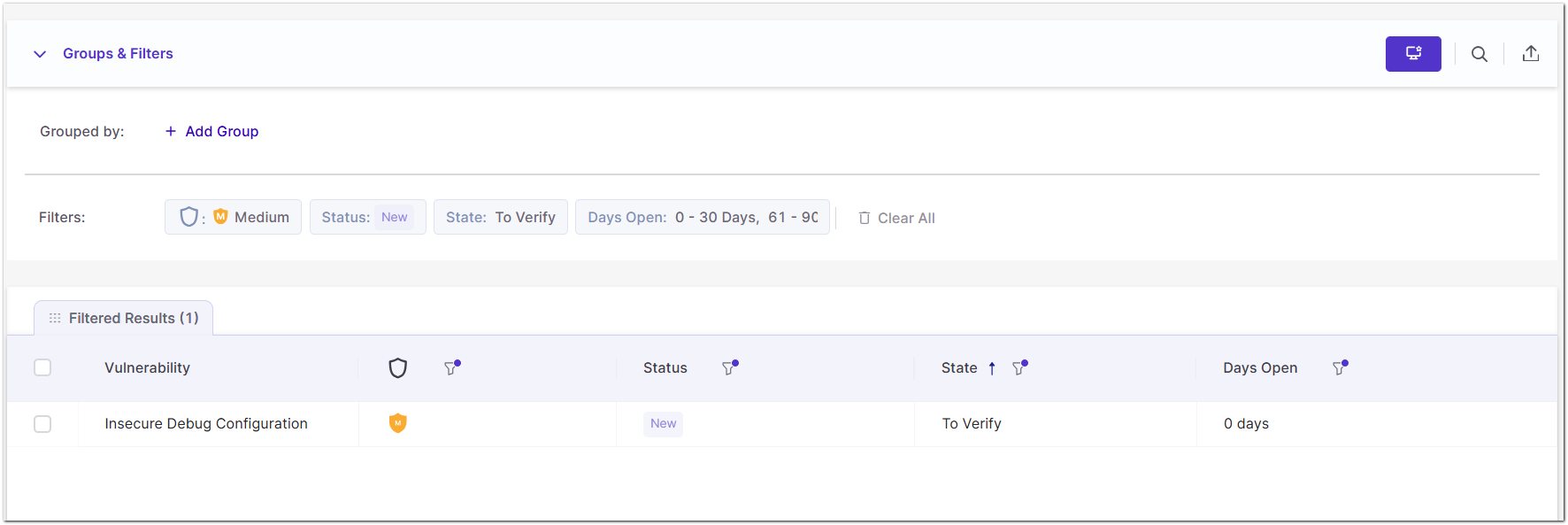
You can apply multiple filters simultaneously to narrow the displayed results.
Applied filters are displayed in the Groups & Filters section above the results table. When filters are applied, the results tab displays Filtered Results, along with the number of matching findings.
Click Clear All to remove all applied filters.
Viewing Individual Vulnerabilities
You can open an individual vulnerability to view additional information provided by the external security tool.
To view vulnerability details:
In the BYOR Results Viewer, locate the vulnerability you want to investigate.
Click the vulnerability row.
A separate tab opens within the viewer for the selected vulnerability.
Review the vulnerability details displayed below the results table.
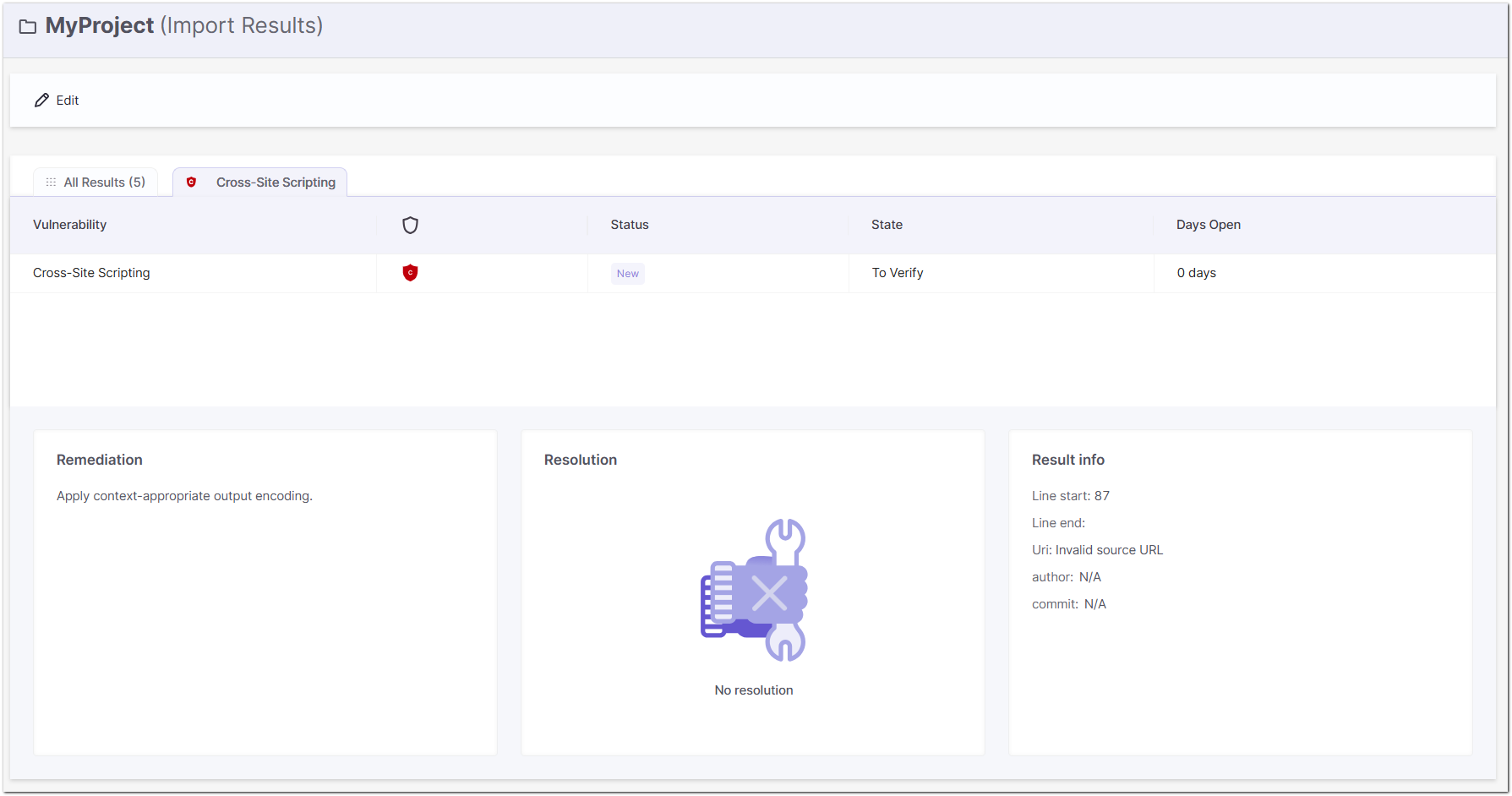
The vulnerability details are organized into the following sections:
Section | Description |
|---|---|
Remediation | Displays remediation guidance or recommendations for addressing the vulnerability, when provided in the imported results. |
Resolution | Displays resolution information associated with the vulnerability, when available. |
Result Info | Displays source information associated with the finding, such as its location in the source file, URI, author, and commit information, when available. |
The information displayed depends on the contents of the imported SARIF file. If remediation or resolution information is not provided, the corresponding section displays an empty-state message.
Result Info
The Result Info section can include the following fields:
Field | Description |
|---|---|
Line start | The starting line number of the location associated with the vulnerability. |
Line end | The ending line number of the location associated with the vulnerability, when provided. |
URI | The URI identifying the location associated with the vulnerability. |
Author | The author information associated with the finding, when available. |
Commit | The source control commit associated with the finding, when available. |
Fields for which no information is available may be empty or display N/A.
Related Documentation
Managing External Imports — Learn how to upload SARIF files, associate imported findings with projects, and monitor imports.
Triaging BYOR Results — Learn how to update vulnerability states and severity levels, attach notes, and review the Change Log.
Bring Your Own Results (BYOR) — Learn about the BYOR capability, SARIF requirements, and other import methods.