Navigating AI Supply Chain Security
Prerequisites
You must enable project filters for AI Supply Chain Security in the global settings before proceeding. Perform the following:
Navigate to
 on the side panel.
Click Global Settings
Select AI Supply Chain Security from the list of tabs.
Write the project filter in the field. See here for an example of writing file/folder exclusion rules.
Click Save when done.
Important
For AI Supply Chain Security to work, it is imperative that you have at least one scanner (SAST, SCA, DAST, etc.) enabled and that the project has already been scanned.
AI Supply Chain Security Table View
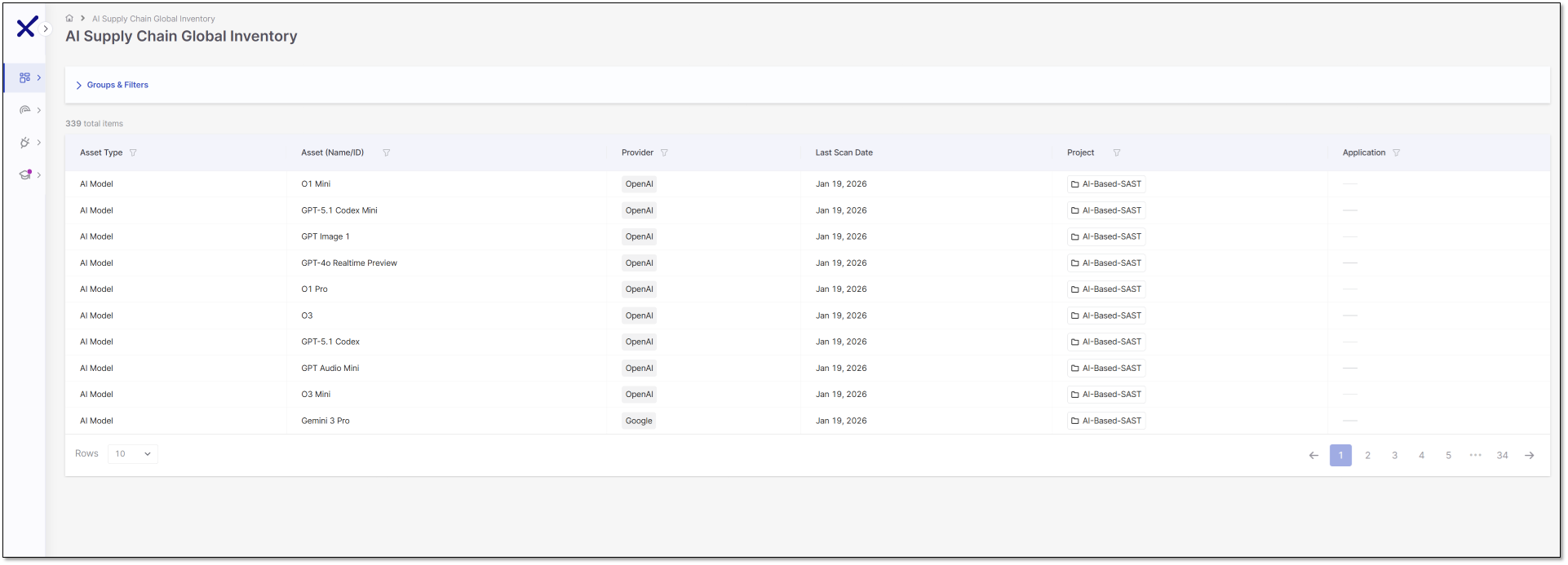
Access the AI Supply Chain Global Inventory page from the side panel:  Resources > AI Supply Chain Global Inventory.
The AI Supply Global Inventory table displays a unified view of all detected AI assets across your environment. Each column supports filtering and sorting to help you refine the table. The table is paginated, showing 10 rows per page by default. The columns are:
Asset Type – The category of the AI component, such as an AI model, LLM SDK, or AI library.
Asset Name/ID – Displays the specific asset name or identifier, for example, GPT‑4.1 or Gemini 3 Pro.
Provider – Shows the source of the asset, such as Meta, Hugging Face, Google, or OpenAI.
Last Scanned Date – Records the most recent timestamp when the asset was scanned.
Project – The project associated with the asset.
Application - The application associated with the asset.