Restricting IP Addresses
We now enable restricting access to your Checkmarx One account to specific IP addresses. You can define an allowlist of IP addresses and ranges, so that only trusted networks can access your account.
IP restrictions apply to users logging in to the web portal as well as to authentication via OAuth Clients and API Keys (which are used for accessing APIs, CLI and plugins).
Important
This setting can only be configured by a user with iam-admin role.
Notice
IP restrictions do not apply to users with iam-admin role or to Service Users (i.e., Checkmarx support).
However, when the iam-admin role is assigned via SSO, then the user's initial login must be done from an allowed IP.
How to restrict IP addresses
You can activate this feature by activating the toggle in the IAM Settings and submitting a list of allowed IPs and CIDRs
Caution
When you activate this setting, all current sessions are automatically terminated. Make sure to take this action at a time that will not disrupt pipelines or interfere with user activity.
Go to Settings
 > Identity and Access Management > General Settings.
Select the Security sub-tab.
Activate the toggle for IP address restrictions.
A row of input fields opens for submitting an IP address.
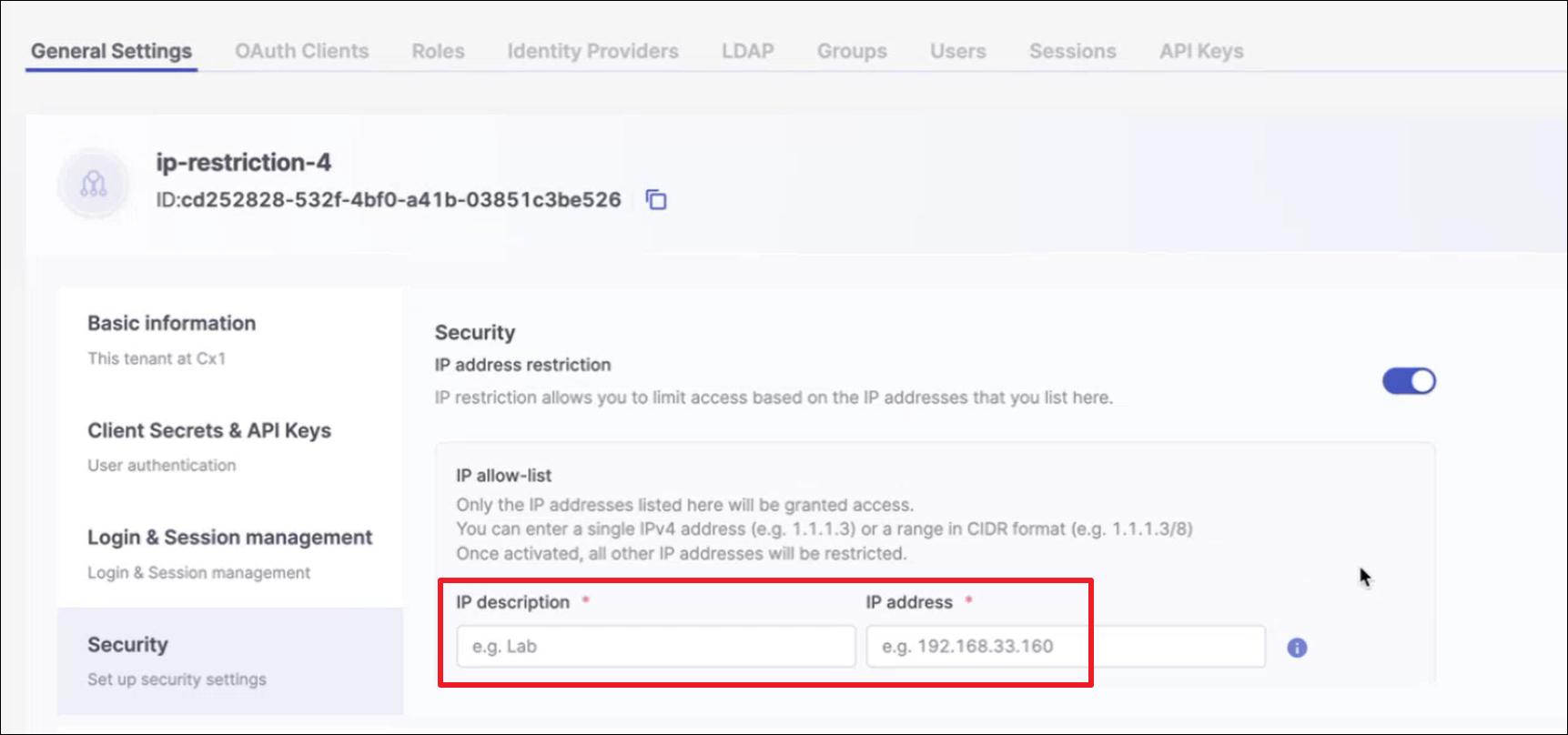
In the IP description field, enter a brief description of the identity of the IP that you are about to submit. In the IP address field enter a valid IP address or a CIDR (representing a range of addresses) to include in the allowlist.
For each additional IP or CIDR that you would like to add (up to 10 items), click + Add other IP addresses and enter the additional IP or CIDR.
Click Save.
Your allowlist is applied and users can't access your account from IPs outside of the allowlist.
Known Limitations
Supported only for Multi-Tenant accounts (not for Single-Tenant)
You can submit a maximum of 10 items - IPs or CIDRs
Supports only IPv4 (not IPv6)
IP values 0.0.0.0 and 255.255.255.255 allow all IPs