Post-Installation Utility
The CxPostInstallation Utility has been introduced for all CxSAST 9.x versions to ensure the database and the Environment variables are fully updated with the correct URIs after upgrading or installing CxSAST. It can be placed anywhere on the same host as the CxManager, as long as it can connect to the database. Similarly, ensure that you have access to the database before using it.
Notice
The CxPostInstallation Utility must be located on the CxManager host in distributed installations.
Incorrect URIs render the Web Portal inaccessible, and CxSAST cannot be used.
Right-click the shortcut to the CxPostInstallation utility and run it as an Administrator.
The Welcome screen appears.
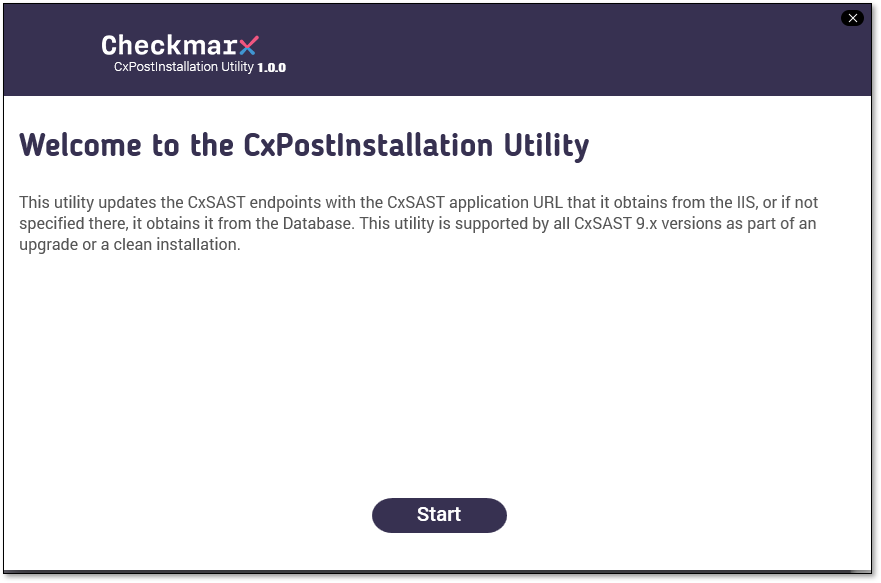
Click <Start> to open the dialog.
Under SAST Application URI, enter the valid endpoint (URI) of your CxSAST engine server and click <Next>. The updated SAST Application URI appears. If the fields appear blank, then you are not connected to the database.
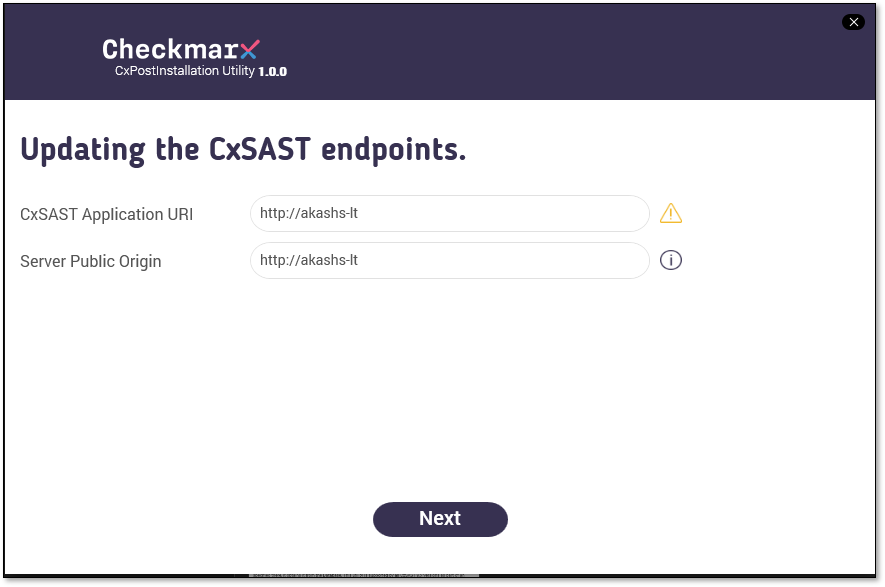
Click <Next>. A summary dialog appears, displaying the updated URIs and the current ones.
To accept the updated URIs, click <Update>. A message confirms that the CxSAST endpoints have been successfully updated. Wait for the message that your URIs have been successfully updated before exiting the tool!
Notice
To enter a different SAST Application URI, click <Back> and repeat the previous steps. To close the utility without making changes, click <x>.
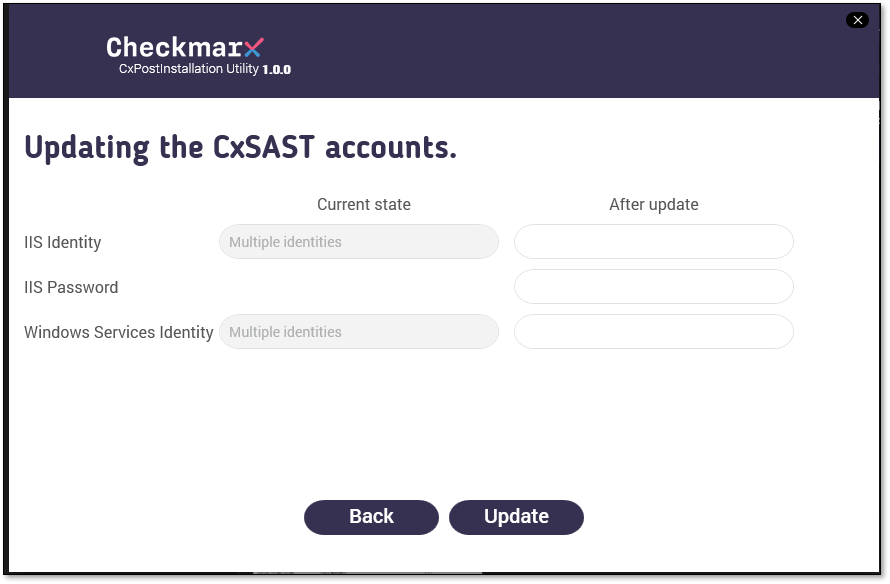
Any changes to IIS must be replicated on Checkmarx to that specific port. If no port changes are indicated, then the default ports are used. Use the PostInstall Utility to align these for you.
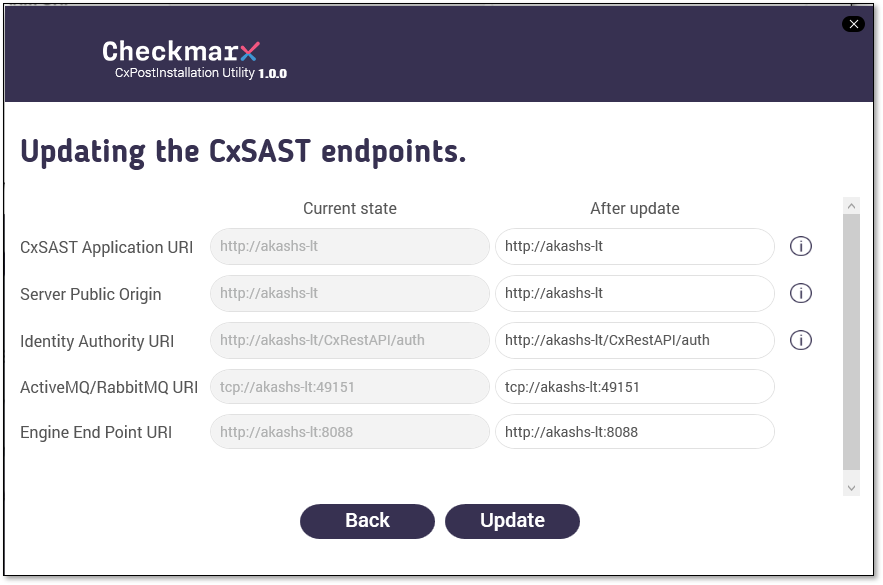
This updates the database values and the Environment variables.
Tip
To verify the Environment variables match, you can view them in your Windows system settings. Click System > About > Advanced System Settings > Environment Variables....